
Modern Survival Horror Framework Preview Docs #
Framework Version: 0.5.0 (Early Access)
Farshad Shirkani & Hosna Shahrokhi
Dark Silver Games
1. Introduction #
The Modern Survival Horror Framework is a modern Unreal Engine framework designed to provide a strong foundation for creating third-person survival horror games, inspired by contemporary titles such as the Resident Evil Remakes and the Silent Hill 2 Remake. The framework aims to preserve the core tension, atmosphere, and pacing of classic survival horror while embracing modern gameplay and animation workflows.
A key focus of the framework is character movement and responsiveness. The locomotion system is built using a modern Motion Matching approach, allowing for more natural, fluid, and context-aware character movement compared to traditional animation state machines. This results in smoother transitions, improved realism, and better player feedback during gameplay.
The framework is developed with modularity and extensibility as long-term goals. While the overall architecture is designed to be modular, the framework is currently in an Early Access state, and some systems are still partially hard-coded. These areas are planned to be refactored and further modularized over time, with modularity being a high priority in upcoming updates.
Modern Survival Horror Framework follows Unreal Engine best practices and makes extensive use of Blueprint Interfaces, Function Libraries, Animation Layers, and thread-safe animation updates. This structure allows developers to customize, extend, and build upon the existing systems without needing to recreate core survival horror mechanics from scratch.
This framework is not a complete game template, but a production-oriented foundation intended for developers who want control, flexibility, and a solid technical base to create their own unique survival horror experience.
2. Framework Philosophy #
The philosophy behind this framework is not to focus on a single interpretation of survival horror, but to support a wide range of survival horror mechanics and design approaches. The goal is to cover the essential building blocks of the genre, allowing developers to mix, match, replace, or expand systems based on the needs of their project.
As the framework evolves, additional systems and alternative implementations may be introduced. This includes, but is not limited to, different inventory models, expanded interaction mechanics, and new gameplay subsystems that reflect various survival horror design philosophies.
Modern Survival Horror Framework is intended for developers who value control, clarity, and a strong technical foundation. It prioritizes clean architecture, clear system boundaries, and extensibility over short-term convenience, with the long-term goal of serving as a reliable foundation for serious survival horror projects.
This framework builds upon the experience gained from the previously released Classic Survival Horror Framework, which has been successfully used by developers in production environments.
3. Support, Updates & Video Tutorials #
Support for the Modern Survival Horror Framework is provided through official documentation, updates, and the community forum.
Developers can now reach out and get help directly on the official forum, where you can ask questions, clarify doubts, report issues, and discuss framework-related topics with the team and other users.
Updates are released incrementally as the framework evolves. Feedback shared on the forum helps guide improvements, refinements, and documentation updates over time.
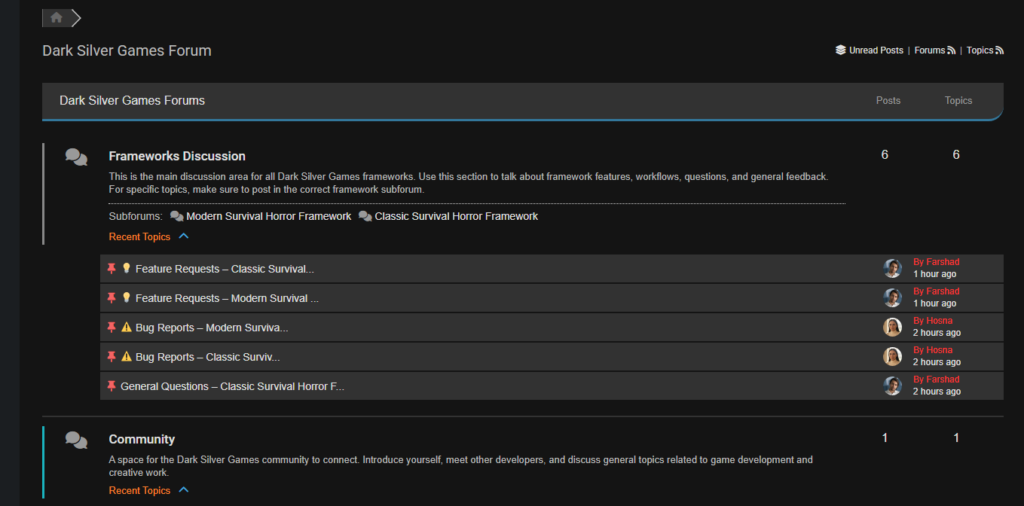
You can explore the documentation for detailed information about the framework.
🎬 Video Tutorials: If you prefer video tutorials, we previously had a set of video guides available here. However, with the release of the new version, these older tutorials have been archived. We are currently preparing new video tutorials to align with the updated framework, so stay tuned for their release in the near future.”
💡 Tip: Your suggestions and feedback make the framework even stronger. Share them on the forum to help shape future updates!
4. Key Features #
Modern Survival Horror Framework includes a set of core systems designed to support modern third-person survival horror gameplay, including:
- Third-person over-the-shoulder camera inspired by modern survival horror titles
- Optional standalone first-person mode for developers building first-person survival horror experiences (not an automatic camera switch)
- Motion Matching–based locomotion system for realistic and fluid character movement
- Grid-Based Inventory System with Multi-Slot Items (Survival Horror Style)
- Advanced Merchant System with Buying, Selling, Weapon Upgrading, and Persistent Save System
- Inventory Expansion System (Upgrade via Backpack Pickups)
- Injury System with animation
- Fully featured storage box system
- Item inspection system with readable files and 3D inspectable objects
- Advanced door system with physics-based interaction and multiple door states
- Multiple lock mechanisms, including keys, keycards, codes, chains, and more
- Context-aware interaction system based on player focus
- Advanced save and load system
- Location-based music system with smooth transitions
- Three weapons ( Pipe, pistol, shotgun).
- Clean and professional UI
- Advanced in-game map system with progression tracking
- Full support for keyboard and Xbox gamepad with automatic input detection
- Starter Enemy AI system with two zombie types
- Flashlight system
- Ladder climbing
- Drawer and weapon lockers
- Narrow space traversal
5. Known Limitations #
- This framework is not a complete game and does not include finished levels, story content, or final gameplay balancing.
- The framework is designed as a production-oriented foundation and requires Unreal Engine knowledge to customize and extend.
- Some core systems are currently implemented as part of a centralized core and are partially hard-coded. For example, certain item movement logic within the inventory system and parts of the item interaction flow are currently coupled to the core implementation. These areas are planned to be refactored into more modular and configurable systems in future updates.
- The current enemy AI is a foundational implementation with basic roaming, perception, chase, and basic attack behaviors, intended to be expanded over time.
- Minor glitches are expected during the Early Access period. Reporting them helps us improve the framework faster!
6. Roadmap #
The development roadmap outlines the ongoing direction and future evolution of the Modern Survival Horror Framework. It focuses on incremental improvements, system refinement, and long-term framework growth based on practical usage and feedback.
A public roadmap is maintained to provide visibility into planned improvements, work in progress, and areas under consideration. This roadmap reflects development intentions rather than fixed commitments and may change as the framework evolves.
Roadmap link: https://trello.com/b/5JYRecsH/modern-survival-horror-framework-roadmap
7. Bug Reporting #
If you encounter any bugs or unexpected behavior while using the framework, please report them so they can be addressed in upcoming updates.
Bug fixing is a high priority during Early Access. Your reports help us keep everything organized and prioritize fixes efficiently.
You can submit issues from Bug Reports Topic in the Support forums.
Even small feedback helps shape the future of the framework. Don’t hesitate to reach out!
8. Getting Started #
Learning and onboarding materials for the Modern Survival Horror Framework are being developed and expanded over time.
Video tutorials will be provided as a structured YouTube playlist, covering core systems, setup workflows, and common customization scenarios. These videos are intended to guide developers through the framework step by step and demonstrate practical usage within real projects.
In parallel with the video content, written documentation will be gradually expanded and refined. This section of the documentation will evolve over time and will eventually provide clear, organized, and detailed explanations for all major systems and workflows included in the framework.
As development continues, both the video tutorials and written documentation will be updated to reflect new features, refactored systems, and improvements introduced through future updates.
9. Character Classes Overview #
If you prefer to see this section in a video tutorial, you can watch this video. However, if you prefer, you can follow the documentation.
– Structure of the Character Classes #
The philosophy behind MSHF character class design is that we have a single BP_CharacterBase class that holds all the core logic, inputs, and behavior of the character. From this base class, we created child classes. If someone wants to create a fully custom character control system with this setup, they can easily create a child class from it and have their own custom character control.
Within the Character folder, we have three classes: BP_PlayerCharacter, BP_PlayerCharacter_MetaHuman, and BP_PlayerCharacter_UE4. The main class that you can use as your character in your project is BP_PlayerCharacter, which is built on a UE5 skeleton and is fully ready for you to integrate your own character into and utilize. If you prefer to use a MetaHuman, the BP_PlayerCharacter_MetaHuman class is provided as an example for this purpose. Alternatively, if you wish to use the UE4 skeleton, the BP_PlayerCharacter_UE4 class is provided for that scenario.
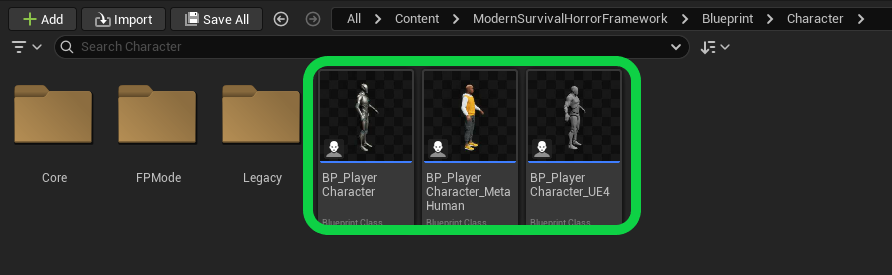
But where is the code logic for these character classes located? The logic, in fact, resides in the main parent class. These classes we discussed are all child classes of our primary character class. In that base class, we only contain the logic; there is no visual element there. You can use these child classes for your own character. But the logic is inside a folder called ‘Core’ next to them. If you enter the Core folder, you will see two classes: the main base class, BP_CharacterBase, which contains all the logic, inputs, and functionality. Next to it is BP_CharacterBaseAdvanced, which we customized to modify the GASP logic, and this class is itself a child of BP_CharacterBase. However, note that these two classes inside the Core folder are not usable directly as your character in the level. You must use one of the aforementioned child classes instead.
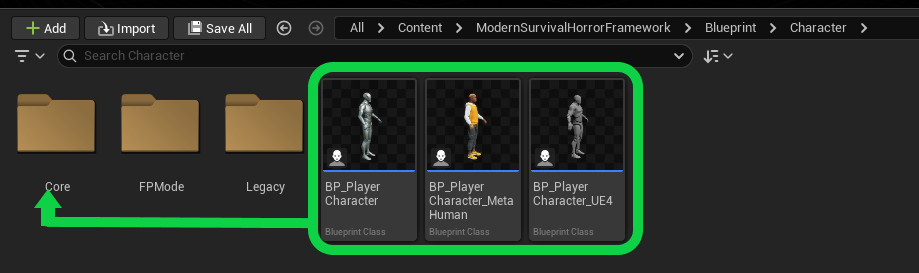
Next to the Core folder, we have the FPMode folder. If you open this folder, you’ll see a class called BP_Character_FP. This class is for those who want to use a first-person perspective for their game. In this class, we have added some visual components that are specific to the first-person perspective. Please note that the way to activate the first-person mode will be explained later in the documentation.
Finally, we have another folder called Legacy, inside which we have a class named BP_Character_TP. This is the legacy player character of the framework, used in previous versions. In this adjusted state, we do not have crouch and traversal systems; it is simpler for those who prefer to use the older setup.
– How to Choose the Appropriate Character Class #
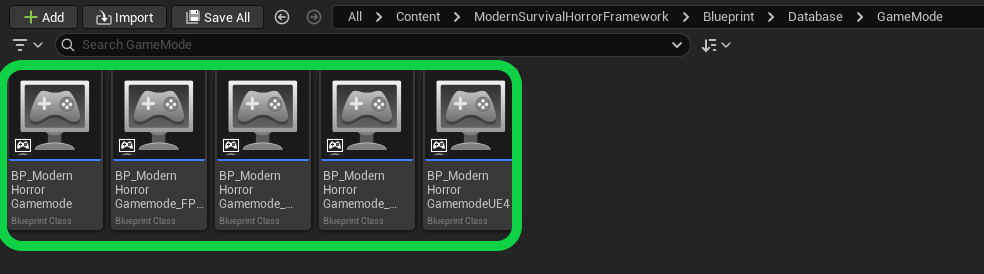
To determine which character class you should use for your project, you need to select the corresponding GameMode. If you go to the Blueprint folder, then Database, and then GameMode, we have five GameModes here. I will specify which one corresponds to each setup. The default GameMode, which is currently set in the framework, is BP_ModernHorrorGameMode, intended for those who want to use the standard UE5 skeleton character. Another GameMode is BP_ModernHorrorGameMode_FP, for those who want to use the first-person mode. The next GameMode is BP_ModernHorrorGameMode_Legacy, for those who want to use the legacy character. The next one is BP_ModernHorrorGameMode_MetaHuman, for those who want to use a MetaHuman, and finally, BP_ModernHorrorGameMode_UE4, for those who want to use the character with the UE4 skeleton.
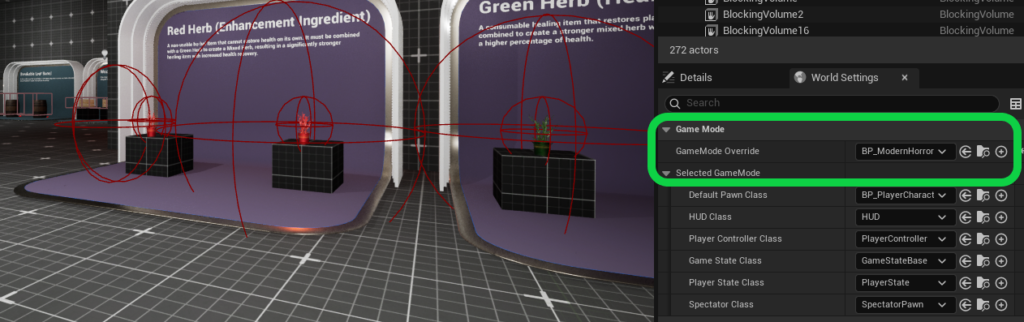
All you need to do is, inside your level, go to World Settings, in the GameMode Override section, set your desired GameMode. After that, you can see and use your chosen character once you start playing. However, one important note: for the first-person game mode class, some special adjustments need to be made, which we will explain shortly. But for the other game modes, this step alone is sufficient.
– Key Considerations When Using Non-UE5 Character. #
Currently, items and their animations, such as the item pickup animation, weapon firing, and reload animations, are set up for the UE5 skeleton by default. For UE5, no adjustment is needed, as it is already set up by default. But for MetaHuman and UE4 skeletons, this must be done so that the animations play more naturally and accurately.
When you choose a UE4 or MetaHuman character for your project, you need to modify these sections.
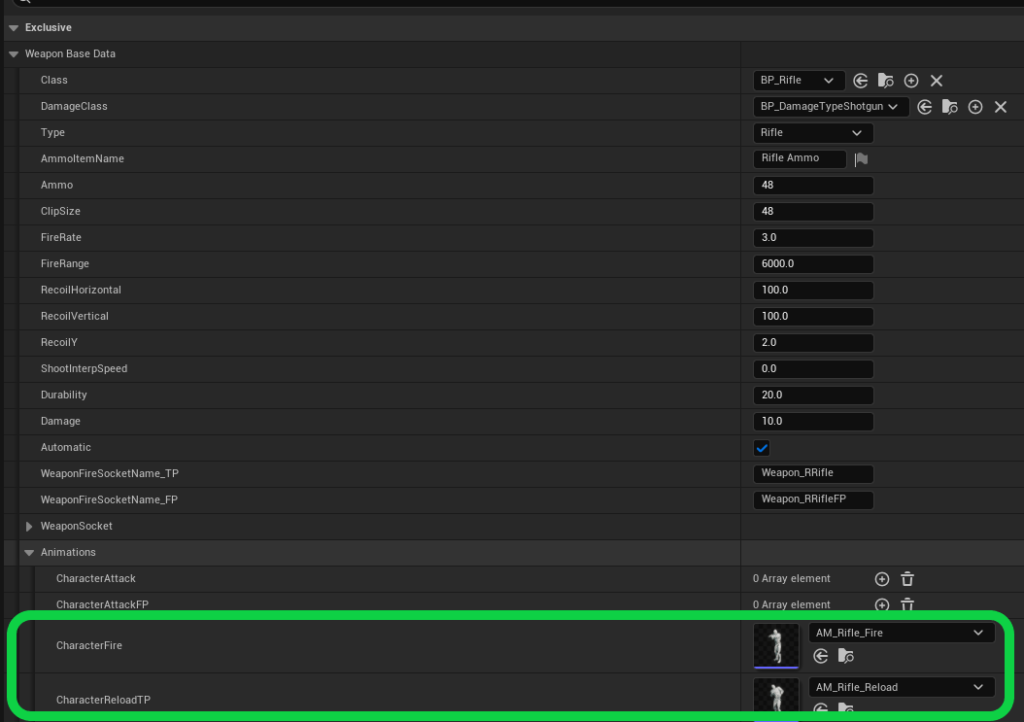
For example, if you want the weapon firing and reload animations to match your MetaHuman or UE4 skeleton, you need to select the BP_Pistol, go into its Item Data, open the pistol’s data asset (named DA_Pistol), and there, in the Weapon Base Data section, you must adjust the Character Fire and Character Reload animations to match your skeleton.
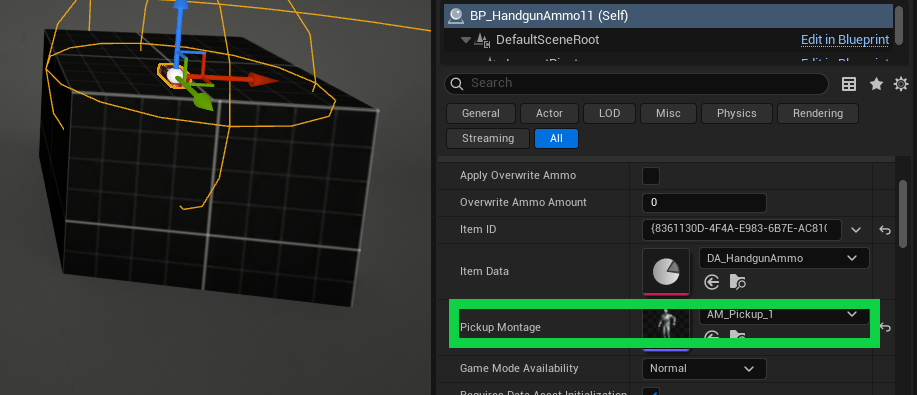
Similarly, for pickup montages, if you click on items like handgun ammo, shotgun ammo, green herb, and so forth, you will see that the pickup montage animation is set up for UE5. If you are using a non-UE5 character, such as MetaHuman or UE4 skeleton, you will also need to set the corresponding animation for them. If you follow these steps, everything in the animation section for interactions will work smoothly.
– How to Enable First-Person Mode #

For the first-person mode, we have a dedicated map that you need to open. Since the first-person setup has distinct settings, we created a separate map for it. The name of this map is ‘OverviewFPMap.’ You must open this map first. Then, go to the Blueprint folder, then Database, and then GameInstance, and open the BP_ModernHorrorGameInstance class.
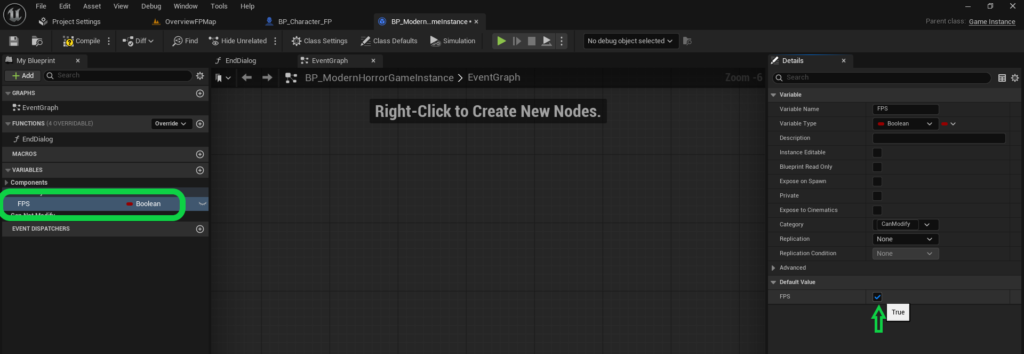
After you open this class, you need to check the FPS variable. Once you tick this variable, everything will be set up automatically for the first-person mode. And if you open the one mentioned, you will see that in World Settings, under GameMode Override, the GameMode appropriate for the first-person mode is set up.
– Footstep system #
The footstep system differs between First-Person and Third-Person modes, as each is optimized for its specific use case.
First-Person Setup:
In First-Person mode, the system is simplified.
Footsteps are handled inside:
ABP_PlayerMMModernSurvivalHorrorFramework/Blueprint/Animation/MotionMatching/Legacy
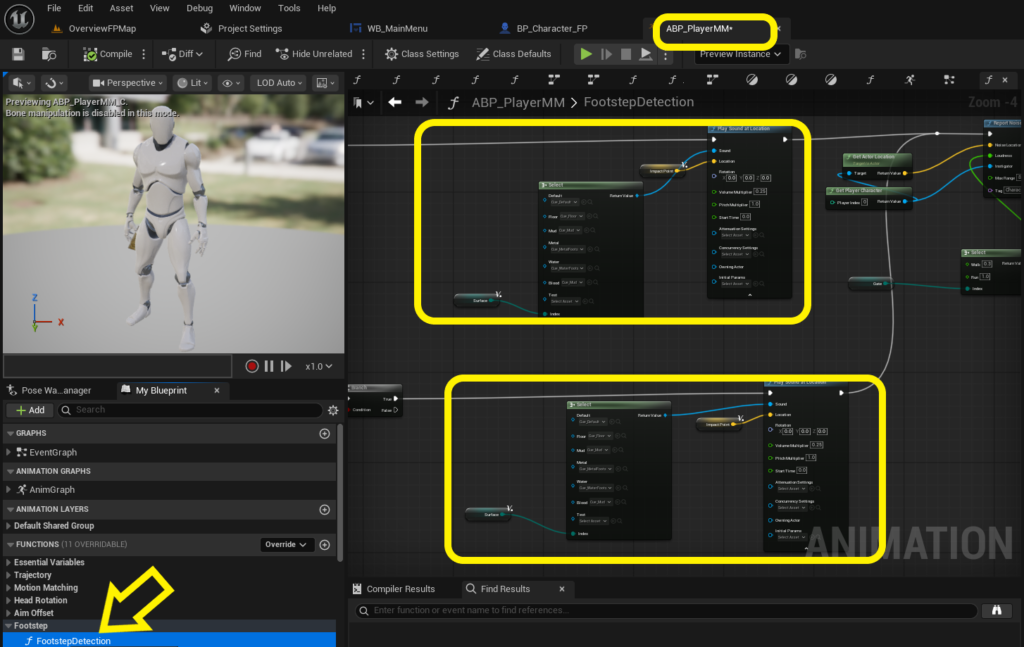
Open the FootstepDetection function to control when and how footstep sounds are triggered.
This setup is straightforward and designed for ease of use.
Third-Person Setup:
In Third-Person mode, the system is different and, aligned with modern standards (e.g., Epic’s workflows and GASP).
To configure footsteps:
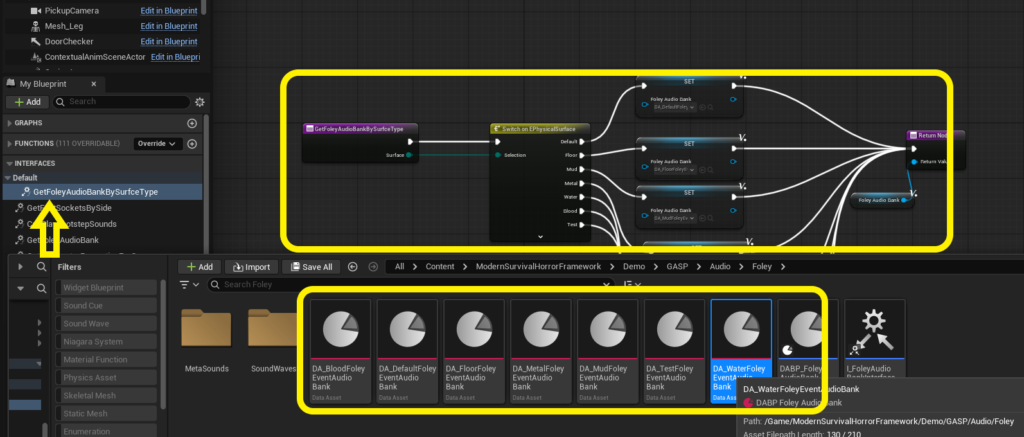
- Open BP_CharacterBaseAdvanced
- Locate and open the interface function:
GetFoleyAudioBankBySurfaceType - Inside this function, a Switch on EPhysicalSurface is used to determine the surface type.
- Each surface type is mapped to a specific Audio Data Asset (Audio Bank).
These Audio Banks define the footstep sounds for different surfaces (e.g., floor, mud, water, etc.).
Customization:
You can:
- Open any existing Audio Bank to see how it is structured
- Use it as a reference to create/change your own custom Audio Banks
- Assign your new Audio Banks to the desired surface types.
Note: Setup of Physical Materials and Surface Types is part of Unreal Engine’s standard workflow and is not covered in this documentation. For further guidance, please refer to the official Epic Games documentation or relevant tutorials available on YouTube.
If you have any questions or run into issues, feel free to ask us in the support forum.
10. Inputs ( Gameplay and UI) #
The framework fully supports both the mouse/keyboard as well as the Xbox controller. Currently, PlayStation controllers are not officially supported, but you can implement it yourself.
In the Modern Survival Horror Framework, the system can automatically detect whether the player is using a mouse and keyboard or an Xbox controller and seamlessly switch to the appropriate input mode. Additionally, all user interface elements and icons are updated dynamically based on the player’s current input method.
When it comes to gameplay controls, you can simply head into the Blueprint folder and then the Input folder. There, you can open the IMC_Default section and customize all the gameplay-related controls for both the Xbox controller and the keyboard.
– Gameplay Controls #
Sprint – Xbox: LB | Keyboard: Left shift
Interact – Xbox: A | Keyboard: E
Jump – Xbox: Right shoulder | Keyboard: Spacebar
Crouch – Xbox: Left thumbstick | Keyboard: C
Flashlight – Xbox: Right thumbstick| Keyboard: L
Inventory – Xbox: Y | Keyboard: I
Aim – Xbox: LT | Keyboard: Right Mouse
Reload – Xbox: X | Keyboard: R
Action – Xbox: RT | Keyboard: Left Mouse
Shortcut Up – Xbox: D_Pad Up | Keyboard: 1
Shortcut Down – Xbox: D_Pad Down | Keyboard: 2
Shortcut Left – Xbox: D_Pad Left| Keyboard: 3
Shortcut Right – Xbox: D_Pad Right| Keyboard: 4
Up – Xbox: D_Pad Up| Keyboard: W, Up
Down – Xbox: D_Pad Down | Keyboard: S, Down
Left – Xbox: D_Pad Left| Keyboard: A, Left
Right – Xbox: D_Pad Right| Keyboard: D, Right
Cancel – Xbox: B | Keyboard: Right Mouse
Pause – Xbox: Special Left, Special Right | Keyboard: ESC, P

– UI Controls #
But what about the controls related to the user interface, such as the inventory system, storage boxes, and inspection system? To make things easier, we have a data table in the framework. If you navigate to the Database folder and then to the Data Tables section, you’ll find the DT_Framework_UIKeys data table. Here, you can configure all the user interface controls for both the keyboard and the Xbox gamepad, so you don’t have to manually adjust each widget. This data table is designed to make your life easier.

– Understanding the UI Control System Architecture #
In this section, we provide an in-depth explanation for those who want to understand the inner workings of the UI control system. While you can easily modify UI buttons using a simple data table, here we explain the underlying logic and architecture so that you can customize or extend the system as needed.
Nearly all widgets that need to be controlled via both keyboard/mouse and gamepad share a common parent widget called “WB_UIBase”. In fact, all widgets that require this functionality inherit from “WB_UIBase”. Within this base widget, we implement a set of foundational features that are essential for all child widgets. For example, inside this widget, we have a boolean variable called “UseGamepad”, which determines whether the player is using a gamepad or not, defaulting to mouse and keyboard. This is handled through runtime detection, meaning that during gameplay, if the player switches input devices, the UI, icons, and overall game experience update accordingly. Within this base widget, we have core functions that all child widgets rely on. For instance, we have a function called UpdateUIIcons, which adjusts the icons of all child widgets based on whether the gamepad is used or not. Similarly, we have another function along with other properties. Thus, this base widget serves as the foundational framework for our primary UI widgets.
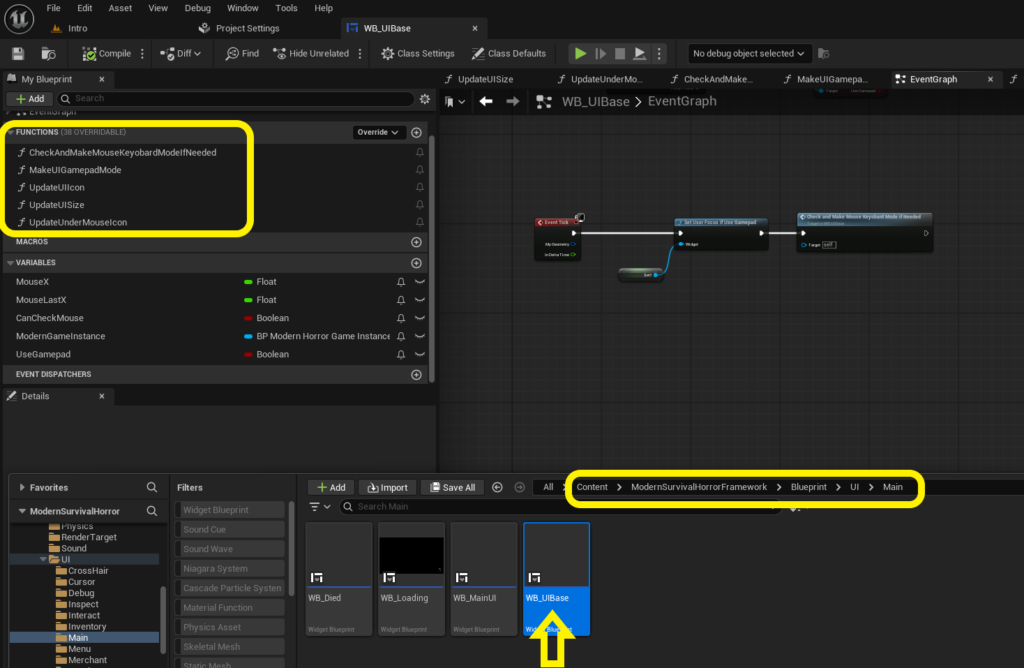
Based on the explanation above, if you want to create a custom widget that supports both gamepad and mouse/keyboard input, you must set its parent widget to WB_UIBase. By doing so, your custom widget will inherit all the foundational logic, ensuring seamless integration for both input methods.
To better understand this concept, the simplest approach is to open one of the basic widgets that inherit from “WB_UIBase” and see what we implemented there. For example, I recommend that you open the “WB_NewSlotAdd” widget to take a look at what we did in that case.
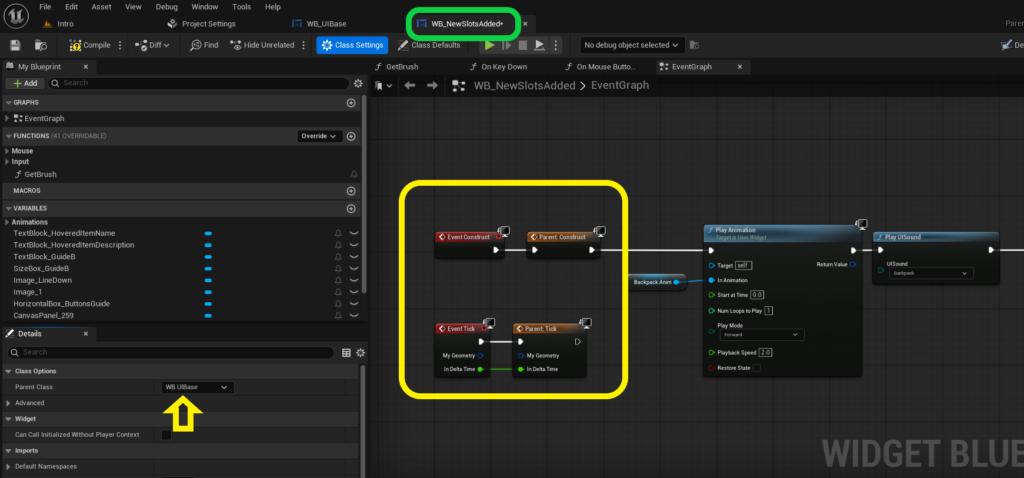
The first important point to keep in mind is that the event functions, such as EventConstruct and EventTick, must reference the appropriate parent so that the child widget can utilize the features defined in the parent version of the widget.
Now, we want to delve into one of the most important widgets, called “WB_Inventory”. As you can see, this widget also inherits from “WB_UIBase”. Inside the inventory, we look at a function called “OnKeyDown”. In this function, we define what happens when a specific button is pressed by the player. Here, we determine whether the input came from a keyboard or a gamepad. All the logic for handling button press events from both the gamepad and keyboard is implemented in this function. The gamepad and keyboard logic is handled here, while the mouse-related input events are implemented in a separate function called “OnMouseButtonDown”.
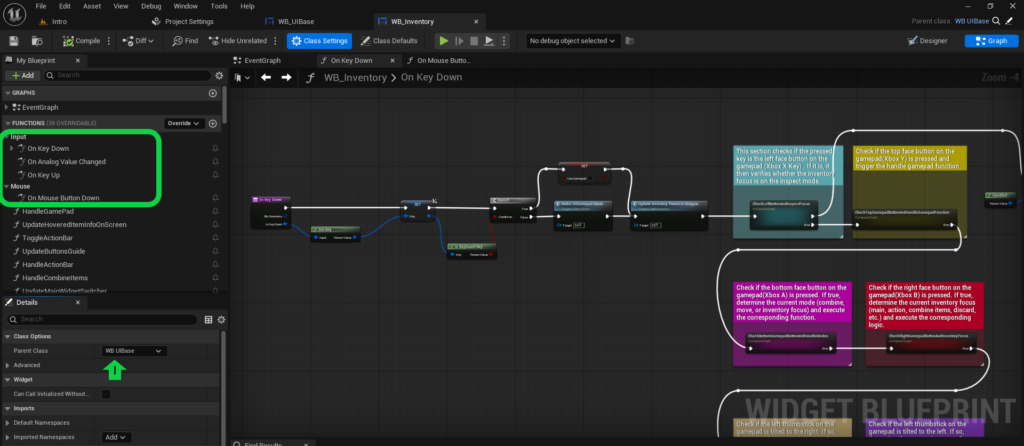
To prevent this section from becoming confusing due to its complexity, we have made every effort to keep everything clean and well-organized, along with adding comments. However, if after reviewing this section you still find any part unclear or ambiguous, you can simply post your question in our forum, and we will do our best to respond to you as quickly as possible.
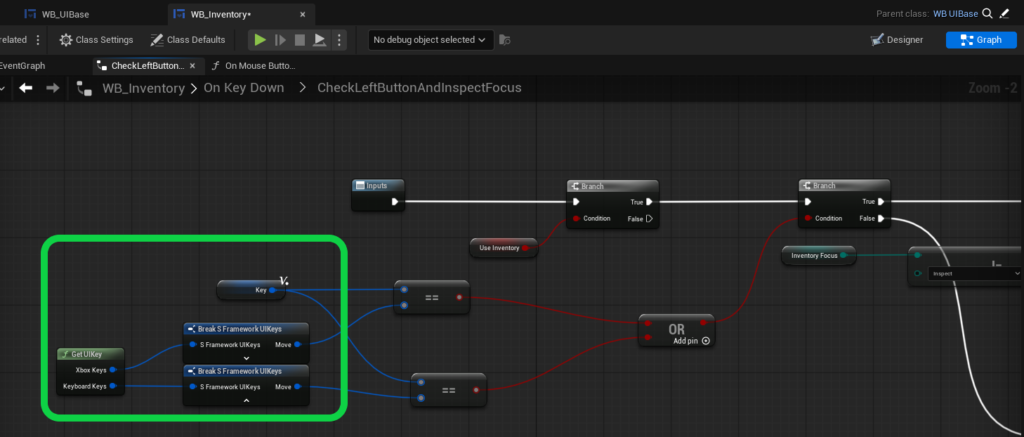
The UI-related data table is used precisely in this section. If you enter any of these graphs, you will see that in the part where we handle the buttons, we are utilizing that data table. The buttons you define there are retrieved here, and the logic proceeds based on those inputs.
Note: If you’re using an Xbox controller and notice odd behavior in the inventory, try closing the Steam app. Sometimes it can interfere with controller input on Windows. This isn’t a framework issue; Personally, I’ve seen it happen in Resident Evil games, Silent Hill 2 Remake, and other games as well.
11. Items #
⚠️ LIMITED ACCESS
You’re viewing the preview version of the documentation
🎯 UNLOCK EVERYTHING AFTER PURCHASE AND VERIFICATION
Details and access instructions are available via the support email listed on our Fab publisher profile or through our optional Forum community website.
12. Narrow Space Traversal System #
⚠️ LIMITED ACCESS
You’re viewing the preview version of the documentation
🎯 UNLOCK EVERYTHING AFTER PURCHASE AND VERIFICATION
Details and access instructions are available via the support email listed on our Fab publisher profile or through our optional Forum community website.
13. Ladder System #
⚠️ LIMITED ACCESS
You’re viewing the preview version of the documentation
🎯 UNLOCK EVERYTHING AFTER PURCHASE AND VERIFICATION
Details and access instructions are available via the support email listed on our Fab publisher profile or through our optional Forum community website.
14. Locomotion & Motion Matching #
⚠️ LIMITED ACCESS
You’re viewing the preview version of the documentation
🎯 UNLOCK EVERYTHING AFTER PURCHASE AND VERIFICATION
Details and access instructions are available via the support email listed on our Fab publisher profile or through our optional Forum community website.
15. Components #
⚠️ LIMITED ACCESS
You’re viewing the preview version of the documentation
🎯 UNLOCK EVERYTHING AFTER PURCHASE AND VERIFICATION
Details and access instructions are available via the support email listed on our Fab publisher profile or through our optional Forum community website.
16. Inventory System #
⚠️ LIMITED ACCESS
You’re viewing the preview version of the documentation
🎯 UNLOCK EVERYTHING AFTER PURCHASE AND VERIFICATION
Details and access instructions are available via the support email listed on our Fab publisher profile or through our optional Forum community website.
17. Storage Box System #
⚠️ LIMITED ACCESS
You’re viewing the preview version of the documentation
🎯 UNLOCK EVERYTHING AFTER PURCHASE AND VERIFICATION
Details and access instructions are available via the support email listed on our Fab publisher profile or through our optional Forum community website.
18. Doors and Lock Systems #
⚠️ LIMITED ACCESS
You’re viewing the preview version of the documentation
🎯 UNLOCK EVERYTHING AFTER PURCHASE AND VERIFICATION
Details and access instructions are available via the support email listed on our Fab publisher profile or through our optional Forum community website.
19. Map system #
⚠️ LIMITED ACCESS
You’re viewing the preview version of the documentation
🎯 UNLOCK EVERYTHING AFTER PURCHASE AND VERIFICATION
Details and access instructions are available via the support email listed on our Fab publisher profile or through our optional Forum community website.
20. Save & Load System #
⚠️ LIMITED ACCESS
You’re viewing the preview version of the documentation
🎯 UNLOCK EVERYTHING AFTER PURCHASE AND VERIFICATION
Details and access instructions are available via the support email listed on our Fab publisher profile or through our optional Forum community website.
21. Weapons #
⚠️ LIMITED ACCESS
You’re viewing the preview version of the documentation
🎯 UNLOCK EVERYTHING AFTER PURCHASE AND VERIFICATION
Details and access instructions are available via the support email listed on our Fab publisher profile or through our optional Forum community website.
22. Enemy AI System #
⚠️ LIMITED ACCESS
You’re viewing the preview version of the documentation
🎯 UNLOCK EVERYTHING AFTER PURCHASE AND VERIFICATION
Details and access instructions are available via the support email listed on our Fab publisher profile or through our optional Forum community website.
23. Merchant system #
⚠️ LIMITED ACCESS
You’re viewing the preview version of the documentation
🎯 UNLOCK EVERYTHING AFTER PURCHASE AND VERIFICATION
Details and access instructions are available via the support email listed on our Fab publisher profile or through our optional Forum community website.
24. Elevator #
⚠️ LIMITED ACCESS
You’re viewing the preview version of the documentation
🎯 UNLOCK EVERYTHING AFTER PURCHASE AND VERIFICATION
Details and access instructions are available via the support email listed on our Fab publisher profile or through our optional Forum community website.
25. Packaging the project #
⚠️ LIMITED ACCESS
You’re viewing the preview version of the documentation
🎯 UNLOCK EVERYTHING AFTER PURCHASE AND VERIFICATION
Details and access instructions are available via the support email listed on our Fab publisher profile or through our optional Forum community website.
26. Assets (CC BY 4.0) #
Note: Some of these assets have been modified.
| Elevator: | Creator: EFX | Link |
| Combination lock: | Creator: artron.classic| Link |
| Card + PIN: | Creator: Meowdeler| Link |
| Magnet Card: | Creator: artron.classic| Link |
| Shotgun Ammo Box:| Creator: jsandwich96| Link |
| Main Menu Confirm Sound: | Creator: Foley Sound Effects| Link |
| Weapon Locker:| Creator: William Luque| Link |
| Cigar Room Environment: | Creator: Hane Studios| Link |
| Bolt Cutter: | Creator: Nikolas Gaertling| Link |
| WoodernCrate: | Creator: Jungle Jim| Link |
| Notebook: | Creator: unrealstudio| Link |
| Knife: | Creator: iwannachillll| Link |
| Doll: | Creator: Lukas Bobor| Link |
| Barrel: | Creator: DZs| Link |


0 Comments