
Framework Version: 0.2.3 (Early Access)
Farshad Shirkani & Hosna Shahrokhi
Dark Silver Games
Note: This documentation is currently a work in progress and is being actively updated. The current content serves as a general overview, and all sections will be expanded and updated with more detailed documentation over time.
1. Introduction #
The Modern Survival Horror Framework is a modern Unreal Engine framework designed to provide a strong foundation for creating third-person survival horror games, inspired by contemporary titles such as the Resident Evil Remakes and the Silent Hill 2 Remake. The framework aims to preserve the core tension, atmosphere, and pacing of classic survival horror while embracing modern gameplay and animation workflows.
A key focus of the framework is character movement and responsiveness. The locomotion system is built using a modern Motion Matching approach, allowing for more natural, fluid, and context-aware character movement compared to traditional animation state machines. This results in smoother transitions, improved realism, and better player feedback during gameplay.
The framework is developed with modularity and extensibility as long-term goals. While the overall architecture is designed to be modular, the framework is currently in an Early Access state, and some systems are still partially hard-coded. These areas are planned to be refactored and further modularized over time, with modularity being a high priority in upcoming updates.
Modern Survival Horror Framework follows Unreal Engine best practices and makes extensive use of Blueprint Interfaces, Function Libraries, Animation Layers, and thread-safe animation updates. This structure allows developers to customize, extend, and build upon the existing systems without needing to recreate core survival horror mechanics from scratch.
This framework is not a complete game template, but a production-oriented foundation intended for developers who want control, flexibility, and a solid technical base to create their own unique survival horror experience.
2. Framework Philosophy #
The philosophy behind this framework is not to focus on a single interpretation of survival horror, but to support a wide range of survival horror mechanics and design approaches. The goal is to cover the essential building blocks of the genre, allowing developers to mix, match, replace, or expand systems based on the needs of their project.
As the framework evolves, additional systems and alternative implementations may be introduced. This includes, but is not limited to, different inventory models, expanded interaction mechanics, and new gameplay subsystems that reflect various survival horror design philosophies.
Modern Survival Horror Framework is intended for developers who value control, clarity, and a strong technical foundation. It prioritizes clean architecture, clear system boundaries, and extensibility over short-term convenience, with the long-term goal of serving as a reliable foundation for serious survival horror projects.
This framework builds upon the experience gained from the previously released Classic Survival Horror Framework, which has been successfully used by developers in production environments.
3. Support, Updates & Video Tutorials #
Support for the Modern Survival Horror Framework is provided through official documentation, updates, and the community forum.
Developers can now reach out and get help directly on the official forum, where you can ask questions, clarify doubts, report issues, and discuss framework-related topics with the team and other users.
Updates are released incrementally as the framework evolves. Feedback shared on the forum helps guide improvements, refinements, and documentation updates over time.
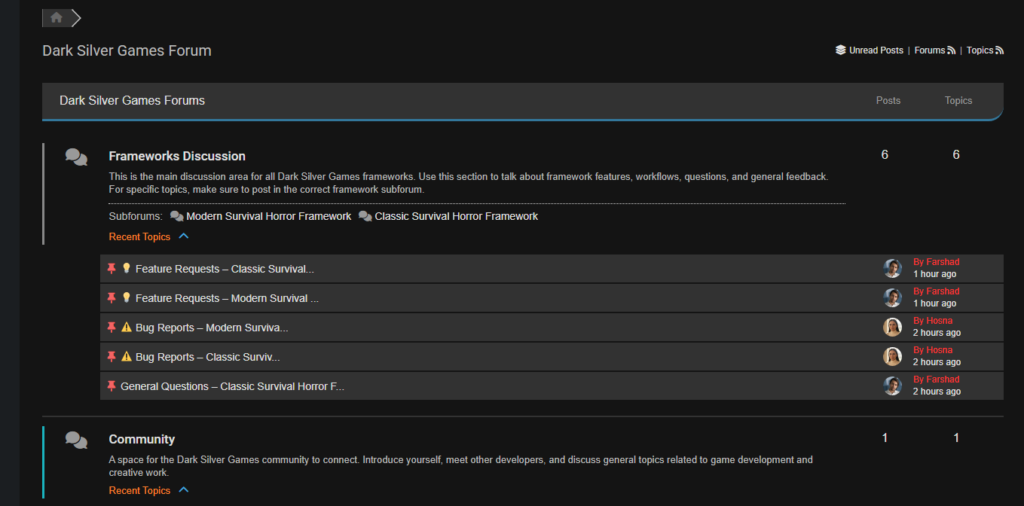
You can explore the documentation for detailed information about the framework.
🎬 Video Tutorials: Alternatively, if you prefer video content, check out the Tutorial series, where tutorial packs are available. The Tutorial series is still being completed, and more video packs will be added over time. We’re waiting to release a few major framework updates first, so that the upcoming tutorials will be fully up to date and aligned with those changes.
💡 Tip: Your suggestions and feedback make the framework even stronger. Share them on the forum to help shape future updates!
4. Key Features #
Modern Survival Horror Framework includes a set of core systems designed to support modern third-person survival horror gameplay, including:
- Third-person over-the-shoulder camera inspired by modern survival horror titles
- Optional standalone first-person mode for developers building first-person survival horror experiences (not an automatic camera switch)
- Motion Matching–based locomotion system for realistic and fluid character movement
- Fully featured inventory and storage box system
- Item inspection system with readable files and 3D inspectable objects
- Advanced door system with physics-based interaction and multiple door states
- Multiple lock mechanisms, including keys, keycards, codes, chains, and more
- Context-aware interaction system based on player focus
- Advanced save and load system
- Location-based music system with smooth transitions
- Three weapons ( Pipe, pistol, shotgun).
- Clean and professional UI
- Advanced in-game map system with progression tracking
- Full support for keyboard and Xbox gamepad with automatic input detection
- Starter Enemy AI system with two zombie types
- Flashlight system
- Ladder climbing
- Drawer and weapon lockers
- Narrow space traversal
5. Known Limitations #
- This framework is not a complete game and does not include finished levels, story content, or final gameplay balancing.
- The framework is designed as a production-oriented foundation and requires Unreal Engine knowledge to customize and extend.
- Some core systems are currently implemented as part of a centralized core and are partially hard-coded. For example, certain item movement logic within the inventory system and parts of the item interaction flow are currently coupled to the core implementation. These areas are planned to be refactored into more modular and configurable systems in future updates.
- The current enemy AI is a foundational implementation with basic roaming, perception, chase, and basic attack behaviors, intended to be expanded over time.
- Minor glitches are expected during the Early Access period. Reporting them helps us improve the framework faster!
6. Roadmap #
The development roadmap outlines the ongoing direction and future evolution of the Modern Survival Horror Framework. It focuses on incremental improvements, system refinement, and long-term framework growth based on practical usage and feedback.
A public roadmap is maintained to provide visibility into planned improvements, work in progress, and areas under consideration. This roadmap reflects development intentions rather than fixed commitments and may change as the framework evolves.
Roadmap link: https://trello.com/b/5JYRecsH/modern-survival-horror-framework-roadmap
7. Bug Reporting #
If you encounter any bugs or unexpected behavior while using the framework, please report them so they can be addressed in upcoming updates.
Bug fixing is a high priority during Early Access. Your reports help us keep everything organized and prioritize fixes efficiently.
You can submit issues from Bug Reports Topic in the Support forums.
Even small feedback helps shape the future of the framework. Don’t hesitate to reach out!
8. Getting Started #
Learning and onboarding materials for the Modern Survival Horror Framework are being developed and expanded over time.
Video tutorials will be provided as a structured YouTube playlist, covering core systems, setup workflows, and common customization scenarios. These videos are intended to guide developers through the framework step by step and demonstrate practical usage within real projects.
In parallel with the video content, written documentation will be gradually expanded and refined. This section of the documentation will evolve over time and will eventually provide clear, organized, and detailed explanations for all major systems and workflows included in the framework.
As development continues, both the video tutorials and written documentation will be updated to reflect new features, refactored systems, and improvements introduced through future updates.
First-Person Mode (Optional) #
A dedicated First-Person Mode has been added in v0.2, allowing developers to create first-person survival horror experiences.
Setup Instructions:
- Open BP_ModernHorrorGameInstance.
- Enable the FPS option.
- Open the OverviewFPMap to start using the first-person mode.
This mode is optional, if you prefer third-person gameplay, no changes are required.
9. Inputs ( Gameplay and UI) #
The framework fully supports both the mouse/keyboard as well as the Xbox controller. Currently, PlayStation controllers are not officially supported, but you can implement it yourself.
In the Modern Survival Horror Framework, the system can automatically detect whether the player is using a mouse and keyboard or an Xbox controller and seamlessly switch to the appropriate input mode. Additionally, all user interface elements and icons are updated dynamically based on the player’s current input method.
When it comes to gameplay controls, you can simply head into the Blueprint folder and then the Input folder. There, you can open the IMC_Default section and customize all the gameplay-related controls for both the Xbox controller and the keyboard.
– Gameplay Controls #
Sprint – Xbox: LB | Keyboard: Left shift
Interact – Xbox: A | Keyboard: E
Flashlight – Xbox: Right thumbstick| Keyboard: L
Inventory – Xbox: Y | Keyboard: I
Aim – Xbox: LT | Keyboard: Right Mouse
Reload – Xbox: X | Keyboard: R
Action – Xbox: RT | Keyboard: Left Mouse
Shortcut Up – Xbox: D_Pad Up | Keyboard: 1
Shortcut Down – Xbox: D_Pad Down | Keyboard: 2
Shortcut Left – Xbox: D_Pad Left| Keyboard: 3
Shortcut Right – Xbox: D_Pad Right| Keyboard: 4
Up – Xbox: D_Pad Up| Keyboard: W, Up
Down – Xbox: D_Pad Down | Keyboard: S, Down
Left – Xbox: D_Pad Left| Keyboard: A, Left
Right – Xbox: D_Pad Right| Keyboard: D, Right
Cancel – Xbox: B | Keyboard: Right MousePause – Xbox: Special Left, Special Right | Keyboard: ESC, P

– UI Controls #
But what about the controls related to the user interface, such as the inventory system, storage boxes, and inspection system? To make things easier, we have a data table in the framework. If you navigate to the Database folder and then to the Data Tables section, you’ll find the DT_Framework_UIKeys data table. Here, you can configure all the user interface controls for both the keyboard and the Xbox gamepad, so you don’t have to manually adjust each widget. This data table is designed to make your life easier.

If you have any questions about this section, feel free to ask. We’re continually working to improve it.
Note: If you’re using an Xbox controller and notice odd behavior in the inventory, try closing the Steam app. Sometimes it can interfere with controller input on Windows. This isn’t a framework issue; Personally, I’ve seen it happen in Resident Evil games, Silent Hill 2 Remake, and other games as well.
10. Items #
-Normal Items #
One of the most crucial aspects of a survival horror game is definitely the items. In our Blueprint folder, we have an “Interaction” folder, and inside that, there’s another folder called “Item.” The main item class is BP_ItemMaster, which serves as the base. From this ItemMaster, we have several child items, such as BP_Key, BP_KeyCard, BP_HandgunAmmo, BP_GreenHerb, and so on. All of these classes are samples and derived from BP_ItemMaster.
Let’s say you want to place a new item in your level. If it’s a herb, for example, you can use BP_GreenHerb or BP_RedHerb as a sample and customize it. So, if your item is a potion or a healing item, you can refer to these classes.
If your item is ammunition, we have BP_HandgunAmmo and BP_ShotgunAmmo as examples that you can use as a reference for your own ammo types.

Similarly, if your item is a key, we have BP_Key and BP_KeyCard, all of which inherit from the Item_Master class.
If your item is a simple note, you can use the sample class BP_Note.
Of course, these are just the child classes we currently have in the framework. You’re free to create your own custom and unique child classes derived from BP_ItemMaster.
Additionally, in the “Weapon” folder, which is located alongside this section, we have our weapons. These are derived from a class called BP_WeaponMaster, which itself is a child of BP_ItemMaster. Pistol, shotgun, and pipe weapons are all children of BP_WeaponMaster. We’ll cover more details about weapons in the weapon section.
Now, let’s say you place an item in your level, for example, you use the sample BP_ShotgunAmmo. In the Details panel of this actor that you place in the level, you’ll find the “default” tab.
If you open this tab, you can add the unique item data of your item, which is a Data Asset. You can create the Data Assets for your unique items and just add them in this panel; that’s it! Simple and modular.
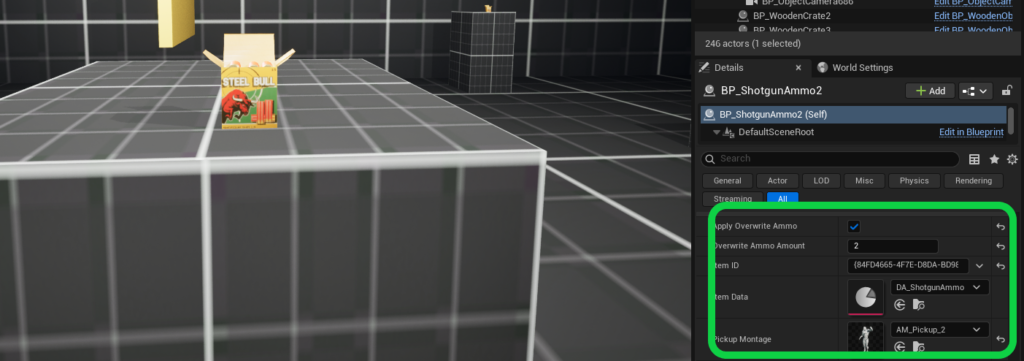
One very important point is that every item placed in the environment must have a unique ID, a GUID. This unique ID is crucial for inventory management and game save and loading. So, to set this up, simply click the arrow next to the unique ID field and select “Generate.” In other words, every item in your environment, regardless of what it is, must have a unique ID.
Another important point to keep in mind is that whenever the player picks up an item, there needs to be a pickup animation. Depending on the platform’s height, whether it’s high, low, or medium, you’ll need to set a unique animation montage for that specific item. Currently, the framework provides several sample pickup animations, but you can also create your own custom pickup animations for different heights if needed.
As you can see in the image, you’ll see the pickup montage option, where you can set the specific animation montage for the platform on which the item is placed. You can use the reference animations provided as samples to learn how to create your own custom pickup animations.
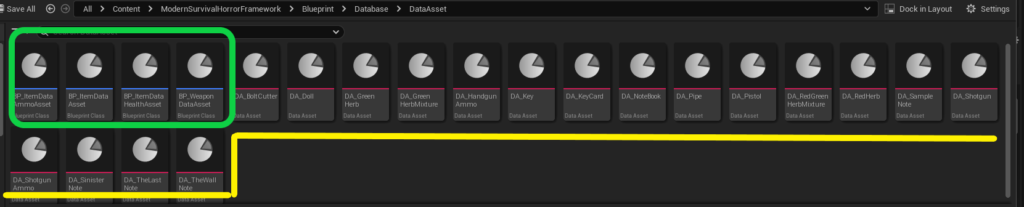
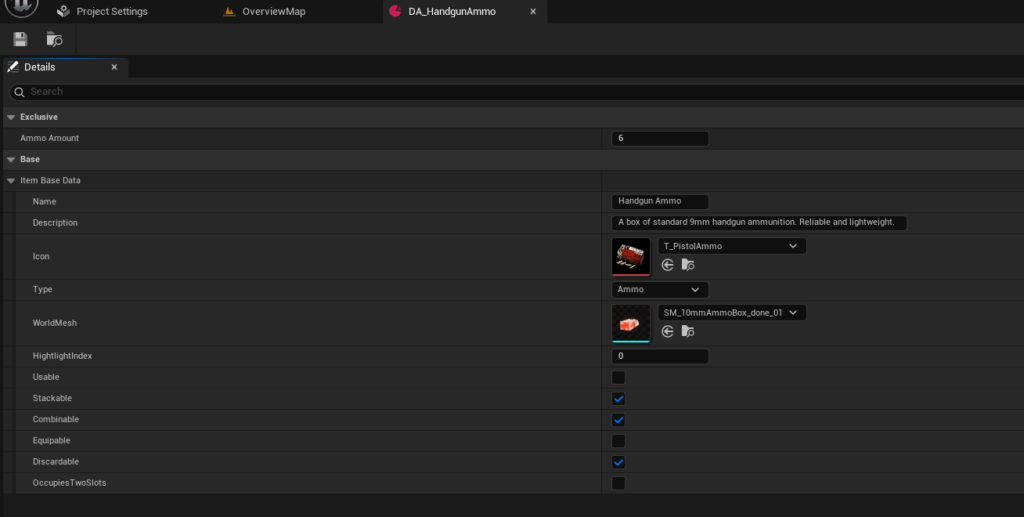
In the Database folder, under the DataAsset subfolder, we have 4 primaryDataAssets, each derived from a master class and intended for a specific type. Alongside them, numerous sample DataAssets are showing how you can create your own unique DataAsset and populate it with information.
-Note Items #
If the item you want to place in your level is of the “note” type, then we have an additional option called “File Data,” which is specifically created within the BP_Note class. You’ll need to open the File Data section, and under the “Front Texts” area, you can input the text for the front page of the note, and under the “Back Texts” area, you can input the text for the back page of the note. Below that, you’ll also find options like “Image Front” and “Image Back,” where you can place the images for both the front and back of the note.

If you go into the class itself, you can also modify the 3D model or the material associated with that model used for the note. Essentially, you can duplicate the BP_Note and fully customize it according to your own preferences and needs.
Regarding items such as BP_Key, BP_BoltCutter, and BP_KeyCard, more detailed explanations have been provided in the section related to doors.
If you want to expand the categorization of pickable items, you can find the E_PickupType enum in the Database folder, and there you can add your own new category.
-Combine Items #
One of the key aspects for items is how we determine which items can be combined. To handle this, you simply need to go into the Database and look for the DT_ItemCombination in the Data Tables section. In this area, we provide several examples showing how two items can be combined and how to set the resulting item. For example, we have combinations like the GreenHerbMixture, the RedGreenHerbMixture, and combinations of Handgun Ammo and Shotgun Ammo. It’s important to note that some combinations, like Ammos, simply increase the quantity of the same item when combined; for instance, merging four Handgun Ammo with two more will result in six Handgun Ammo.
However, for combinations like the RedGreenHerbMixture, it needs to produce a completely new result.

11. Narrow Space Traversal System #
We have an actor called BP_Narrow, which we can use for our Narrow Space Traversal system. As you can see in the image, all we need to do is place this actor into our level. By default, this actor covers a specific area.

The “NarrowCheckbox1” and “NarrowCheckbox2” components within the BP_Narrow actor are important, as these components define the conditions under which the player transitions from the normal state into this traversal system.

Each BP_Narrow actor requires a BP_Narrow Camera. We set this BP_Narrow Camera on the BP_Narrow by assigning it to the CameraRef variable.

When you want to make this narrow system smaller, and essentially reduce the area through which the player can pass, you need to adjust the “LoopBox”, as well as the “StartEndBox1” and “StartEndBox2” components. These components, along with the others that have already been explained, must be properly positioned in their correct locations.


12. Ladder System #

So how does the ladder system work? We’ve made an effort to keep it as flexible as possible, but there are a few important points to consider. First, we’ve placed a sample ladder in the overview map and another one in the demo map, which you can use to learn the ladder system more effectively. However, I’ll also explain some details here.
When you place the ladder in your environment, it’s essential to have a wall behind it. If there’s no object behind the ladder, a message will appear on the ladder indicating that it’s not placed correctly, and once you position it properly, that message will disappear.

Now, there are two key components inside the ladder that you need to adjust carefully to avoid unexpected results. The first one is the “LadderUpTrigger”, which, as shown in the image, determines the correct position at the top of the ladder where the player will transition. The second key component is the “LadderUpOutBox”, which defines when the player exits the ladder at the top. Again, as shown in the image, you should arrange it similarly to ensure proper control of the ladder system.

Additionally, there are variables in the ladder system’s Details panel that you can tweak, such as the height, whether you need a top ladder or not, and the rungs offset, etc. Right now, the default animation is set for a rungs offset of 38, which fully matches the current Ladder animations, hand and feet. If you change this offset, you’ll need to adjust the ladder animations accordingly, or tweak the existing ones. This is important to keep in mind, and you can adjust the ladder’s height and size as you wish.
If, after placing your ladder in the environment, you notice that the character’s hand and foot animations aren’t aligning properly on the ladder, it means that either the rungs offset isn’t set to 38, or the components we mentioned earlier aren’t positioned correctly. These components are crucial for determining when the player enters and exits the ladder, so if they’re not placed properly, the character’s limbs won’t align as intended. So, pay close attention to these details.
This also applies to situations where, for example, the player wants to enter the ladder system from above and go downward. If those components aren’t properly adjusted, the player might immediately exit the ladder as soon as they enter it. These are the kinds of issues you’ll need to watch out for and correct when adjusting the components.
Once again, if you encounter any issues with the ladder system, you can either ask questions in the dedicated chat or refer to the demo map and the overview map. You can copy and paste the ladders from those maps into your own level and then use them as a reference or template to create your own unique ladder.
13. Locomotion & Motion Matching ( will be completed) #
In this section, we utilize an Animation Blueprint that incorporates the Motion Matching system. This system includes components such as the Chooser, Schema, and Pose Search Normalization Set. As a result, when you wish to add your own custom animations to the project, you simply import them into the Pose Search database, allowing your custom animations to be seamlessly integrated.
Currently, the Motion Matching system is used exclusively within the Animation Blueprint. However, in future updates, we plan to introduce a standard locomotion system for users who prefer not to use Motion Matching.
Additionally, it’s worth noting that the project currently utilizes animations from the Game Animation Sample Project with some modifications applied to the Motion Matching system.
14. Components ( will be completed) #

In the Modern Survival Horror Framework, we have adopted a component-based approach to structure various parts of the project. This means that each functionality is encapsulated within its own dedicated component, ensuring modularity and flexibility. Many of the related codes and Blueprints are located in the AC_Components folder, making it easy to manage and update individual parts of the system.
Over time, we will continue to expand the documentation and provide more details about this section.
15. Inventory System ( will be completed) #
The Inventory System is based on the design of the Resident Evil 3 Remake. We have chosen to ground our inventory system on this particular model, but we also plan to incorporate various other inventory system details from different survival horror games in the future.
Regarding the Inventory System itself, we have adopted a component-based approach, as explained in the Components section. This means that each part of the project is designed with its own dedicated component. Many of the codes and Blueprints related to the Inventory System are located in the AC_Inventory folder. The main Inventory widget is WB_Inventory, where we can see the overall inventory layout. We also have other widgets, such as WB_InventorySlot, which handles individual inventory slots, and WB_StorageBox, which uses similar concepts related to the Inventory System.
Over time, we will continue to expand the documentation and provide more details about this section.
16. Storage Box System ( will be completed) #
Much like the Inventory System, the Storage Box System in our framework also draws inspiration from Resident Evil 3 Remake. We have adopted the same layout, theme, algorithms, and logic found in that game and integrated them as the foundation of our framework.
Additionally, all aspects related to the Storage Box System can be easily found within the AC_Inventory component. This includes functionalities such as moving items, transferring items between the Storage Box and the Inventory, and vice versa. All of these features are implemented within the AC_Inventory component.
Over time, we will continue to expand the documentation and provide more details about this section.
17. Doors and Lock Systems #

Doors are designed to be physics-based, meaning that when the character interacts with them, the door will open, and if the character moves away, the door will close. This mechanic is inspired by the Resident Evil Remakes, as well as the Silent Hill 2 Remake.

Furthermore, doors have different states. A door can be open or locked. When a door is locked, it can be locked from both sides, or it can be locked from one side, requiring the character to approach from the opposite side to unlock it. If a door is locked with a key, the character will need to find the corresponding key. Additionally, there are other locking mechanisms, such as security systems that require a keycard, or even a combination lock that demands both a keycard and a passcode. In some cases, the door might be secured with a chain.
-Normal Door #

The most common door is one that is neither locked. To place this door into your environment, all you need to do is drag the BP_Door class into your level. Then, in the Default Details panel, ensure that the Lock Type is set to “NoLock”, and make sure that the boolean variable Locked is not checked. Additionally, you’ll need to generate a unique ID for the DoorUniqueID variable, which is a GUID. This is how you set up a standard door.
-One-Sided Locked Door #

The next-door type is one that is locked from one side. To place such a door in your level, you’ll again drag the BP_Door into your level. In the Details panel, set the Lock Type to One-Sided, and make sure the boolean variable Locked is checked. Once again, you’ll need to generate a unique ID for the DoorUniqueID.
-Locked Door: Need a Key #

If you want to create a locked door that requires a key to unlock, place the door in your environment and set the Lock Type to Need Key. You should set the Lock Type to Need Key, and the boolean variable Locked should be checked. Underneath that, there is a Key Name variable, where you’ll specify the name of the key that unlocks this door.
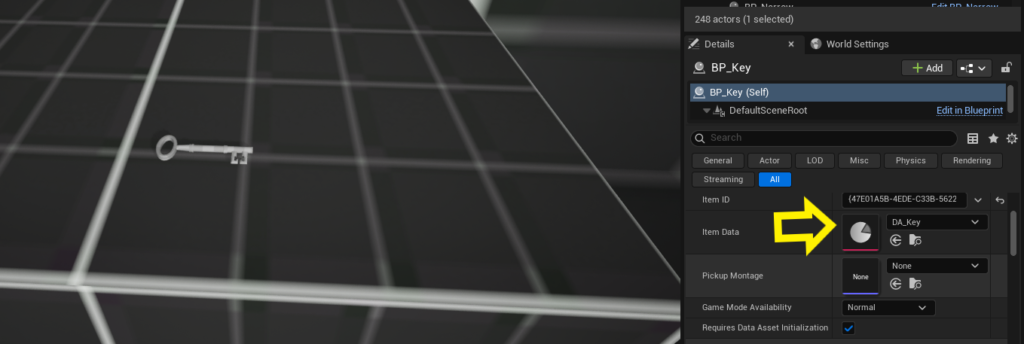
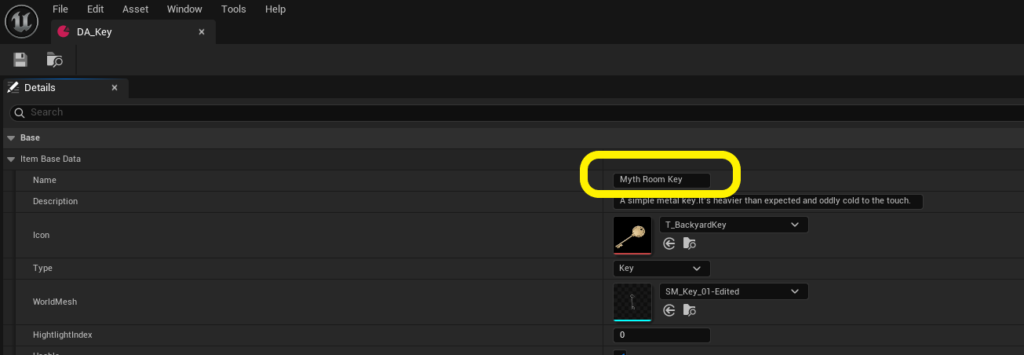
Then, we also need to bring the BP_Key class into our level. In the Details panel, we’ll open its Data Asset and fill in the relevant key information according to our requirements. The name of this key must match the Key Name variable on the door, so that the key and the door can connect properly.
-Locked Door: Need a Keycard #
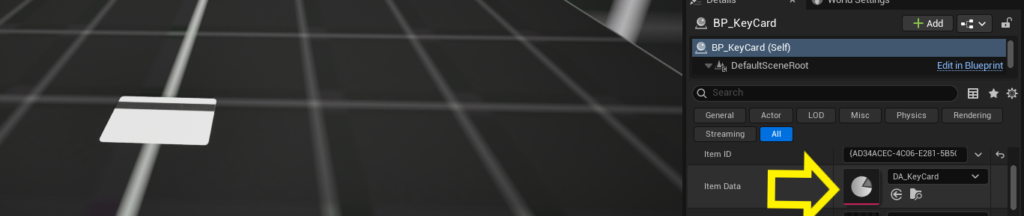
This door requires a key card. For this door, the option that must be set is that the Lock Type should be configured to Card Only, and the Locked option should be checked. When we place such a door on our level, we need to look for an item called a Key Card within the environment. This item is specified in the framework as BP_KeyCard.

-Locked Door: Need a Keycard and passcode #

We have another type of door that not only requires a key card, but also needs a passcode to be entered.
For that door, the Lock Type should be set to Card&Code, the Locked variable should be checked, and the passcode section will require an entered code. Any passcode that you enter, which must be four digits long, will be configured on this door.
-Locked Door: Combination lock #

The next door type is locked with a combination lock, and it requires a code to be entered. To set up such a door, you’ll need to bring the BP_Door into your level, set the Lock Type to Combination Lock, ensure the boolean variable Locked is checked, and choose a five-digit passcode.
-Chained Door #

The next door type is locked with a chain. To place such a door in your environment, all you need to do is bring the BP_Door into your level, set the Lock Type to Chained Lock, and ensure that the boolean variable Locked is checked. Then, for the player to open this door, you’ll need to place an item called BP_BoltCutter in the environment. If the player finds this item, they can cut the chain and open the door.

18. Map system #
To enable the map system in your new level and learn how to set it up, you can watch this tutorial video.
19. Save & Load System ( will be completed) #
The Save and Load System is also thoroughly implemented within the framework. Almost all the relevant code for this functionality is found in the AC_SaveGame component. This component is designed to allow players to save their progress using a typewriter and to load their saved games from the main menu.
What can be saved within the framework? Virtually everything. Items are fully saveable, including weapon counts, ammunition quantities, which doors the character has interacted with, which doors have been unlocked, which doors remain locked on the map, and the state of the map itself. This includes the placement and status of items, door states, and the positions of enemies. For example, if an enemy is spawned and defeated, it will not reappear upon loading the game. Essentially, the Save and Load System captures nearly every detail.
However, future updates will continue to expand and refine this system.
20. Weapons #

Currently, the framework includes three weapons: a pipe as a melee weapon, a pistol, and a shotgun as ranged weapons, which players can use to defeat enemies. These weapons are derived from a master weapon class named BP_WeaponMaster, and the specific weapons, BP_Pipe, BP_Pistol, and BP_Shotgun, inherit from this master class. Plans are also in place to add more weapons in the future.
-Creating a New Weapon of an Existing Type #
This method of implementation was added in update v0.2.2 - First, make sure you have downloaded the latest version of the framework, and once that’s done, you can follow this section.
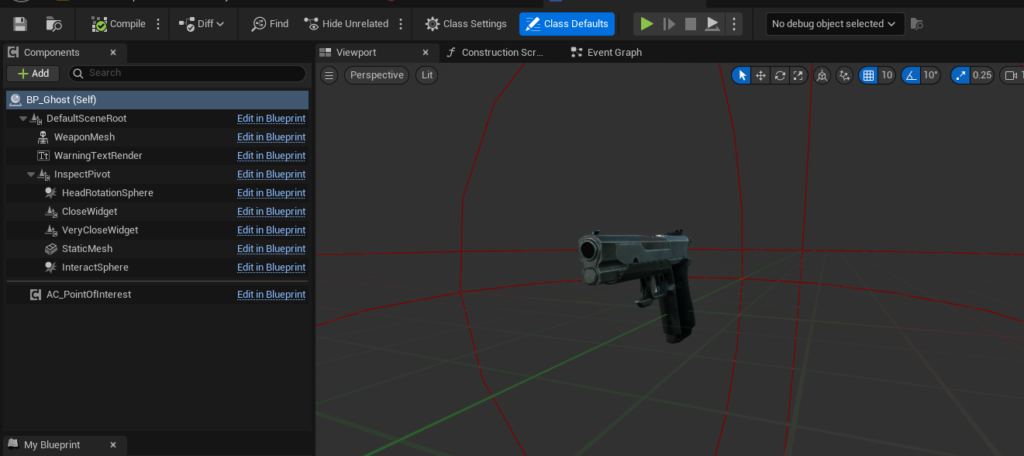
First, to add a new weapon of the same type, we need to create a duplicate of one of the existing weapons of that type. In this tutorial, I’ll demonstrate how to add another handgun. To do this, the first step is to right-click on BP_Pistol, select “Duplicate,” and as an example, I’ll create a new weapon called BP_Ghost.
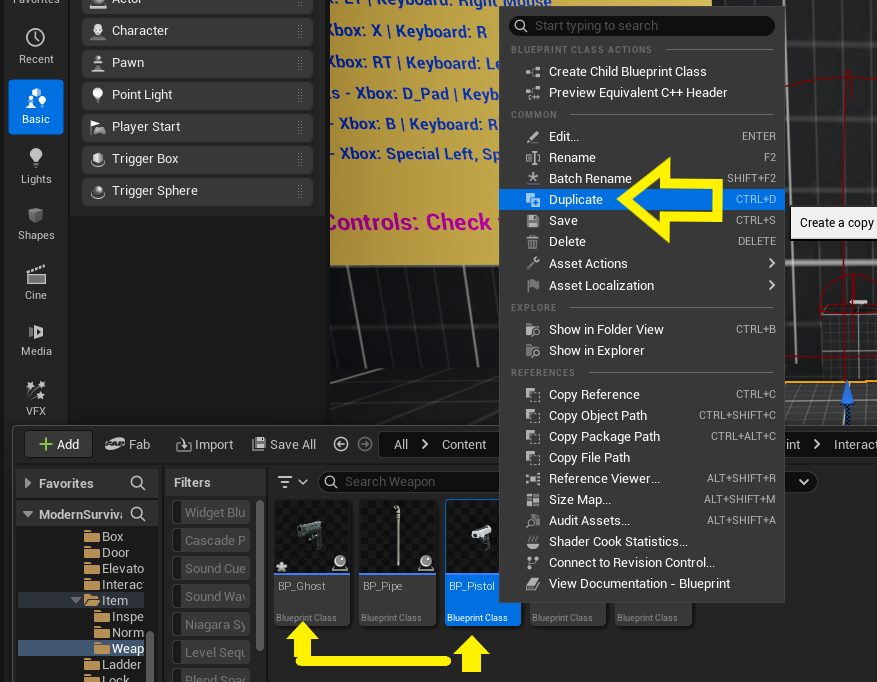
Next, we open our new pistol, which is now BP_Ghost. Here we should replace the skeletal mesh with our new weapon’s mesh.
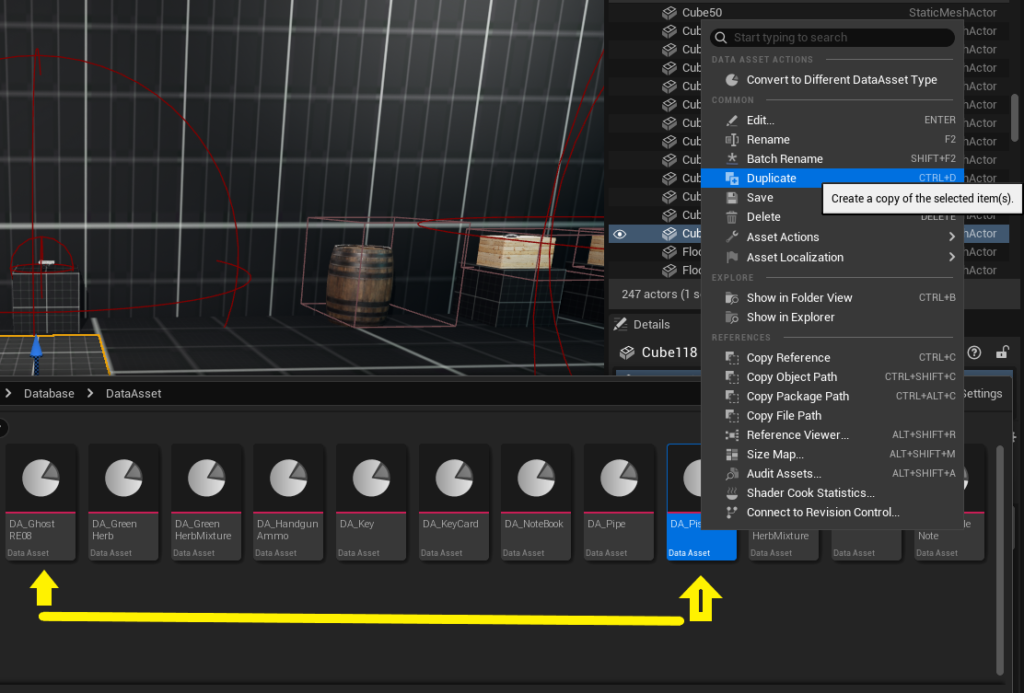
Next, we go into the Data Asset section and duplicate DA_Pistol. We create a new Data Asset for our new weapon. I’ve named it DA_Ghost_RE07.
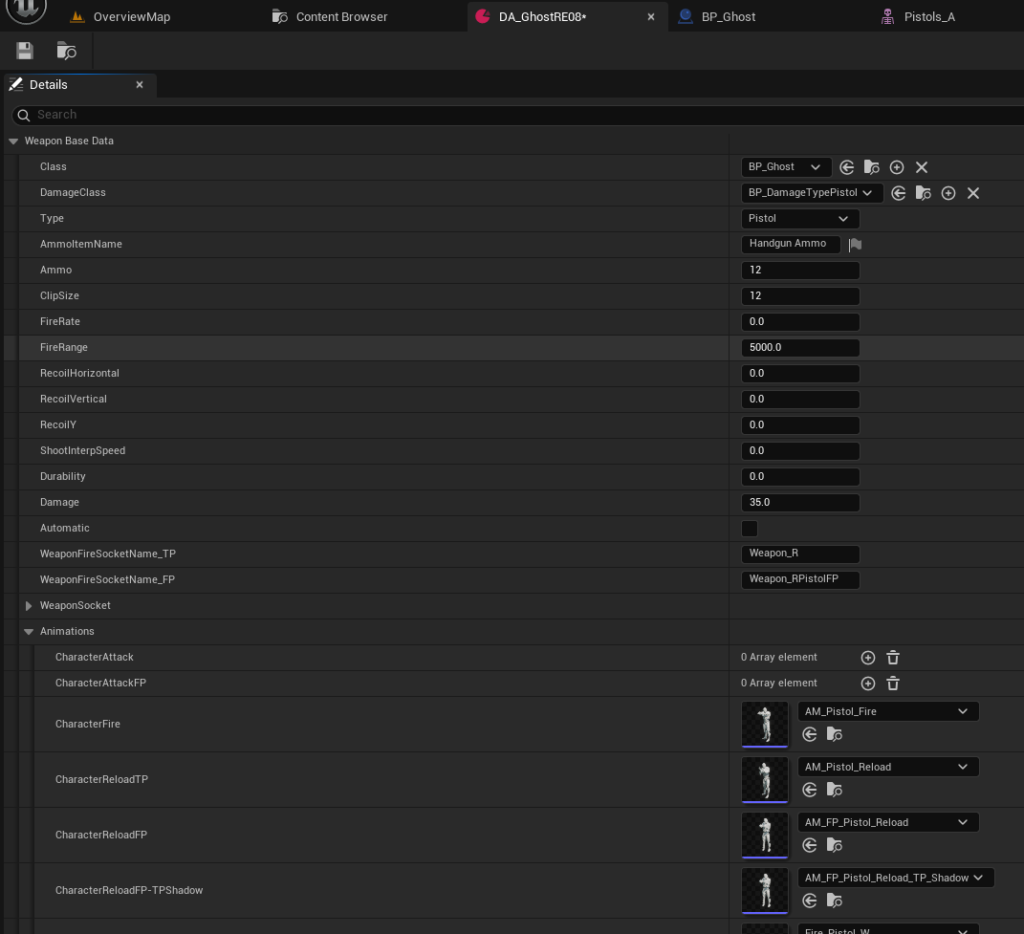
Then, we open the newly created data asset and update all of its information to align with our new weapon. Make sure to fill out each section carefully and verify that everything matches your new weapon specifications.
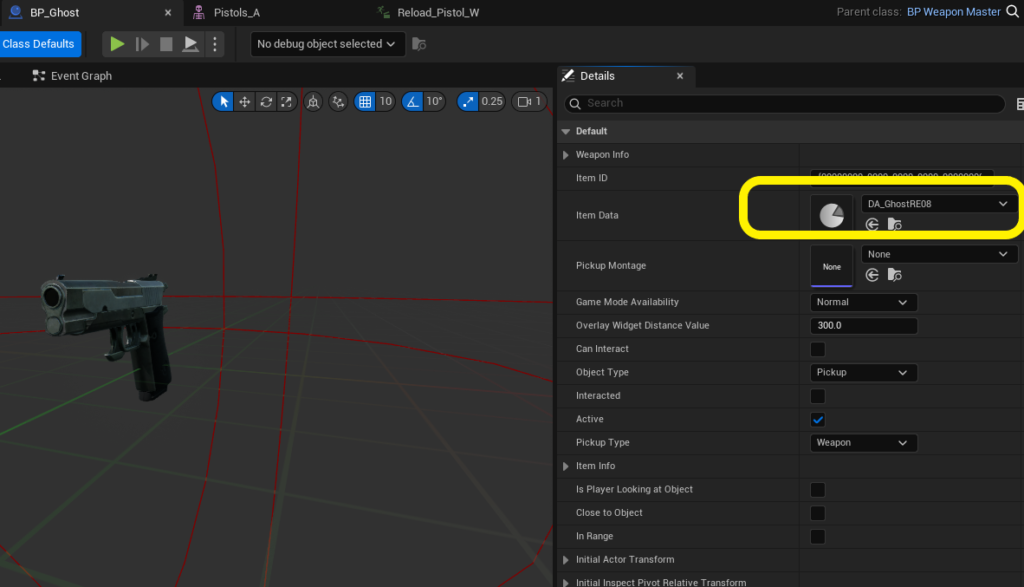
Finally, we open our new weapon class and, in the Item Data section, set the new Data Asset we created. Once that’s done, your new weapon is fully integrated and ready to use.
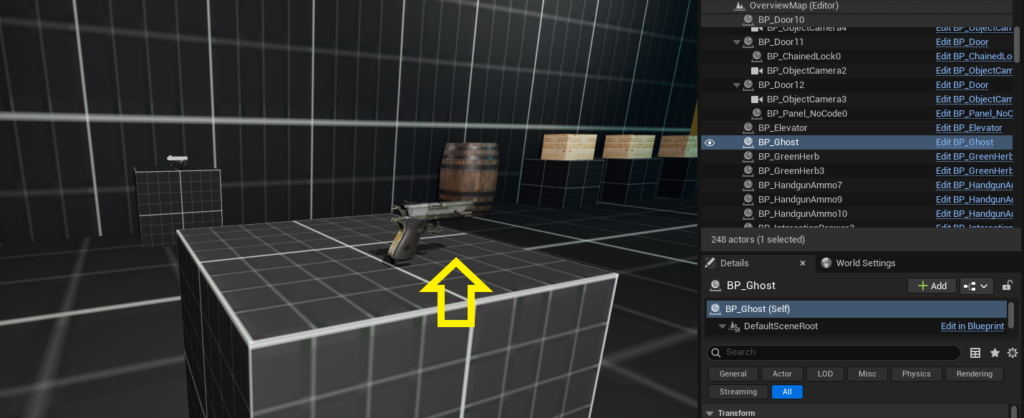
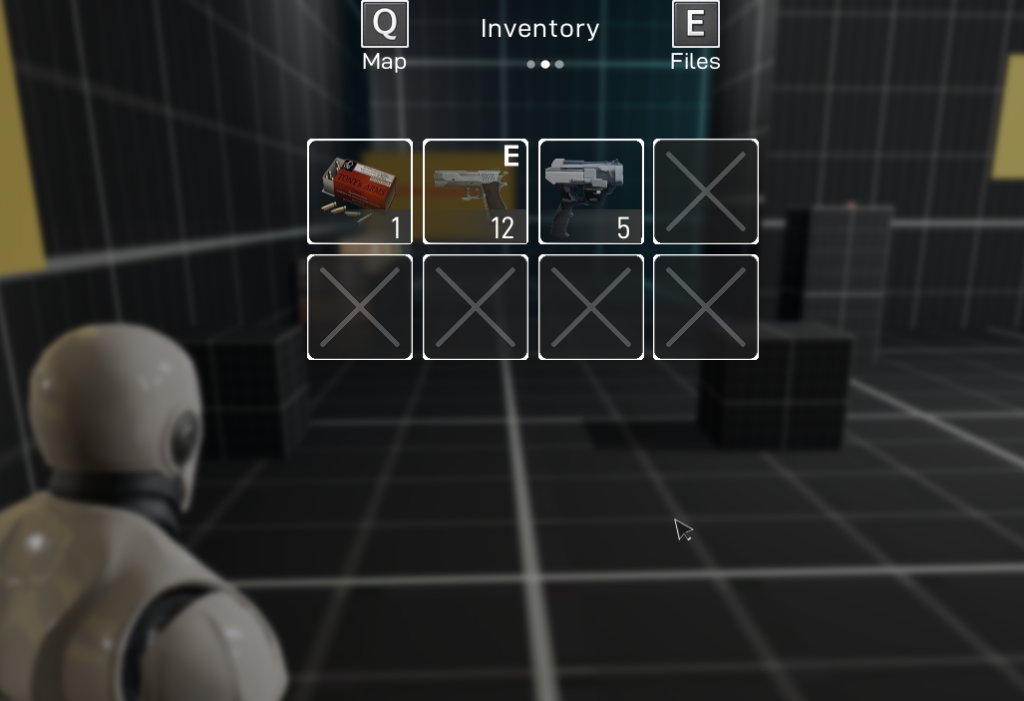
-Creating a New Weapon of a Different Type #
This section will be completed ...
21. Enemy AI System ( will be completed) #
Currently, the framework features two enemy AI models, both of which inherit from the BP_AIMaster class. While they share similarities, they have distinct behaviors, and both aim to attack the player.
What features do these AI possess? They can sense the player both visually and audibly. If they see or hear the player, they will attack and attempt to kill them. If they lose track of the player, they will return to a roaming state on the map.
Additionally, each AI type can have different initial states at the start of the game, such as being idle, roaming, or patrolling. For example, if set to patrolling, you can define specific points for them to patrol. If set to roaming, they will wander within their designated area.
Additionally, within the AI section, there is a folder called “Helper,” which contains actors that assist the AI. One of the most important of these is the BP_AISpawner. Through this actor, we control when and where the AI will spawn, based on trigger volumes. In other words, if the player enters a specific trigger volume, the enemy will spawn at a designated location. Furthermore, both the BP_AISpawner and the enemies themselves are properly saved and loaded within the game’s save system.
Over time, we will continue to expand the documentation and provide more details about this section.
22. Packaging the project #
Modern Survival Horror Framework is under active development and regularly improved. Due to Unreal Marketplace template delivery limitations, each update is provided as a fresh project rather than an in-place upgrade. This does NOT affect normal usage of the framework, packaging, or long-term production.
However, projects created on older framework versions are not designed to be upgraded across major updates. For the best and most stable experience, it is recommended to start new productions from the latest framework version.
-Before packaging: #
Before packaging your project, please make sure to move the Movies folder from its current location:
ModernSurvivalHorrorFramework\Blueprint\Movies
to the root Content folder of your project.
Otherwise, the intro cutscene and Health Bar in UI will not play in the packaged build.
To do that:
1. First, be sure to make a backup of your project so that if something goes wrong, you’ll still have your latest work saved.
2. Open your project directory in Windows File Explorer. In the “root” folder (where the `ModernSurvivalHorrorFramework` folder is located), create a new folder named “Movies”.

3. Navigate to:
`ModernSurvivalHorrorFramework\Blueprint\Movies` Select all `.mp4` video files and move them to the new “Movies” folder you just created in the root directory.

4. Inside Unreal Engine, move all files from:
`ModernSurvivalHorrorFramework\Blueprint\Movies`
to the new “Movies” folder in the root directory and then delete the old Movies folder.

5. Open all “FMS_” assets and ensure their file paths now point to the new “Movies” folder location for the related `.mp4` videos.

6- Finally, don’t forget to update the redirector references.

7. Everything should now work correctly in both the “Packaged Build” and the “Editor”.First, test it inside the editor to confirm everything is working. If you encounter any issues, double-check the steps above. You can also contact me if you have any questions.
23. Assets (CC BY 4.0) #
Note: Some of these assets have been modified.
| Elevator: | Creator: EFX | Link |
| Combination lock: | Creator: artron.classic| Link |
| Card + PIN: | Creator: Meowdeler| Link |
| Magnet Card: | Creator: artron.classic| Link |
| Shotgun Ammo Box:| Creator: jsandwich96| Link |
| Main Menu Confirm Sound: | Creator: Foley Sound Effects| Link |
| Weapon Locker:| Creator: William Luque| Link |
| Cigar Room Environment: | Creator: Hane Studios| Link |
| Bolt Cutter: | Creator: Nikolas Gaertling| Link |
| WoodernCrate: | Creator: Jungle Jim| Link |
| Notebook: | Creator: unrealstudio| Link |
| Knife: | Creator: iwannachillll| Link |
| Doll: | Creator: Lukas Bobor| Link |
| Barrel: | Creator: DZs| Link |


0 Comments