ver 1.8
1. Introduction #
This framework has been developed by experienced developers who grew up playing classic Resident Evil and Silent Hill games. Its primary goal is to provide game designers with a powerful foundation to bring their ideas to life and create authentic survival horror experiences in this iconic style.
We have made every effort to ensure that this framework is built using the best practices in Blueprint programming. Features such as interfaces, function libraries, animation layers, and Blueprint Thread-Safe Update Animation have been utilized to ensure everything is implemented optimally. These techniques improve performance and make adding new weapons with unique animations much simpler for developers.
2. Support, Updates, and Video Tutorials #
Support for the Modern Survival Horror Framework is provided through official documentation, updates, and the community forum.
Developers can now reach out and get help directly on the official forum, where they can ask questions, clarify doubts, report issues, and discuss framework-related topics with the team and other users.
Updates are released incrementally as the framework evolves. Feedback shared on the forum helps guide improvements, refinements, and documentation updates over time.
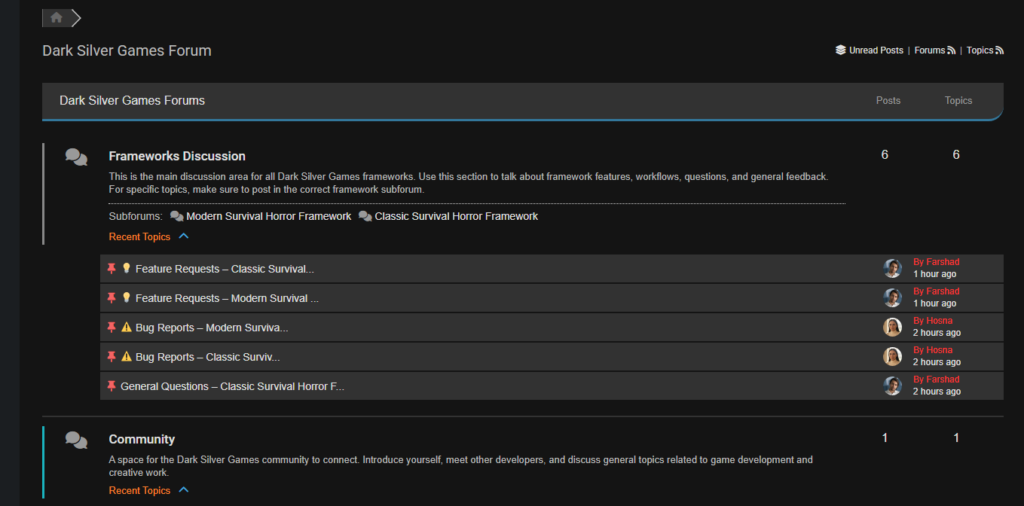
You can explore the documentation for detailed information about the framework. Alternatively, if you prefer video content, check out the Tutorial series, where comprehensive tutorial packs are available.
If you’d like to support us even more and get extra access to exclusive addons and perks, you can check out our Patreon tiers. Membership is completely optional and not required to use the framework.
Continuous Improvement & Your Ideas:
This framework is always evolving through regular updates. Ideas and feedback from the community shape every update, and now, you’re part of it.
If you have any suggestions, thoughts, or ideas, please share them here on the Forum! They will be carefully reviewed and considered for future updates, helping make the framework even better for everyone.
You can stay up to date with the latest updates and features by checking the Roadmap at the following link: https://trello.com/b/AtGSvOGm/classic-survival-horror-framework-roadmap
3. Key Features #
This framework offers a wide range of features inspired by classic survival horror games, including:
- Classic Fixed-Angle Camera System
- Classic Inventory System with the ability to move, combine, and use items.
- Door and Platform System with lock mechanics.
- Advanced Save and Load System for seamless progress management.
- Text and File Reading System in the style of classic games.
- Object Interaction System with Text.
- Music Player (Each location can have specific music that plays when the player enters the area and fades out when the player leaves).
- Dynamic pursuer enemy (inspired by Nemesis-style behavior).
- 3D door open/close cutscenes.
- Storage Box System for item management.
- Several Weapons(Pistol, Rifle, Shotgun, Pipe).
- Clean and Professional User Interface.
- Map System.
- Fully supports keyboard and Xbox Gamepad.
- Interaction happens only if you directly look at the objects.
- Injured state system.
- Footstep surface physics for different surfaces.
- Character Selection.
- Exploding Barrels.
- Follower AI!
- Parasite Zombie!
- Zombies on Fire!
- Zombies Wake Up!
- Head Burst!
- Locked Chest.
- Flashlight system.
- Ink Ribbon.
- Multiple Difficulty Modes
- UE4, UE5, and Metahuman skeletons support.
- The player automatically looks at the nearest enemy.
- Cutscene Player- easily create and trigger cutscenes anywhere.
4. Feature Guide #
4.1 Classic Camera System #
The Classic Camera System is designed to replicate the fixed-angle camera style of classic survival horror games. To set it up, you only need to use the two highlighted actors shown in the image: BP_CameraSwitcher and BP_Camera.
To begin, place the BP_CameraSwitcher actor in your scene and assign a Camera to it. This will act as the camera switcher for that area. For the first camera in your game, make sure to check the IsPrimaryCamera option in the BP_CameraSwitcher settings to mark it as the starting camera.
How you position and adjust your cameras is entirely up to you. Simply place the CameraActor wherever you want in the scene and set its angles to achieve the look and feel you want.
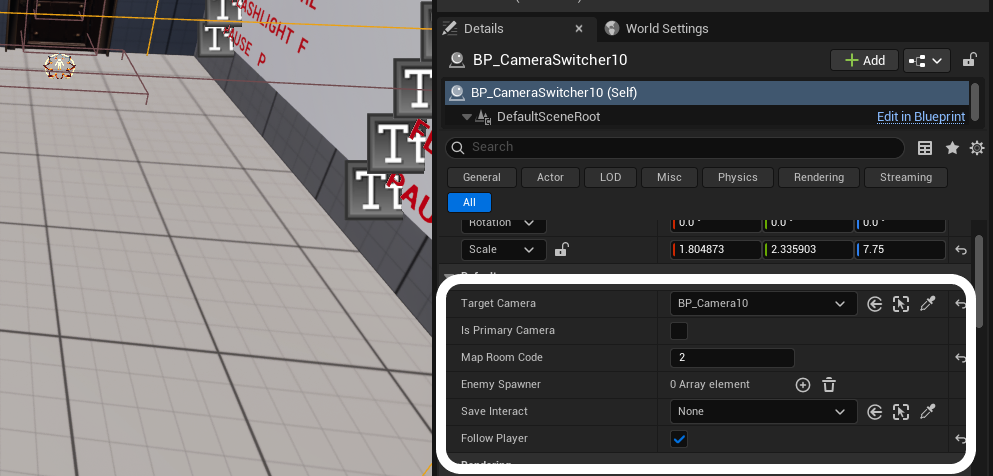
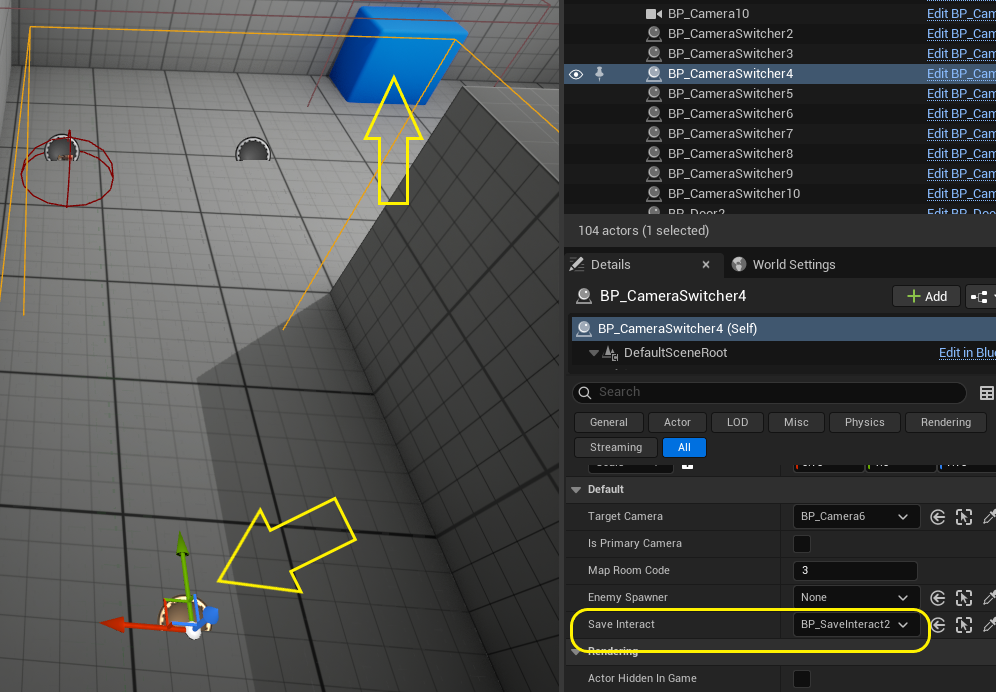
The SaveInteract variable in this section is used specifically for save rooms. In these rooms, you should assign the BP_SaveInteract class to the BP_CameraSwitcher that is positioned near it.
Another important setting in BP_CameraSwitcher is the array variable called EnemySpawner, as well as another variable named MapRoomCode. I will explain both of these in their respective sections: one is used for the map system, and the other is related to enemy AI behavior.
4.2 Platforms and door lock system #
The Door and Lock System is based on a parent class called BP_Platform, which has tree child classes: BP_Door, BP_Ladder and BP_Stair. These classes provide the functionality for doors, ladders and stairs in your game.
In the details panel of each platform, you can access various options such as whether the door is locked, whether it has an animation, whether the player should be asked a question before using it, and the teleport points for the player to move between platform sides.
By adjusting these options, you can fully customize how your doors and ladders behave, giving you complete control over their functionality in the game.
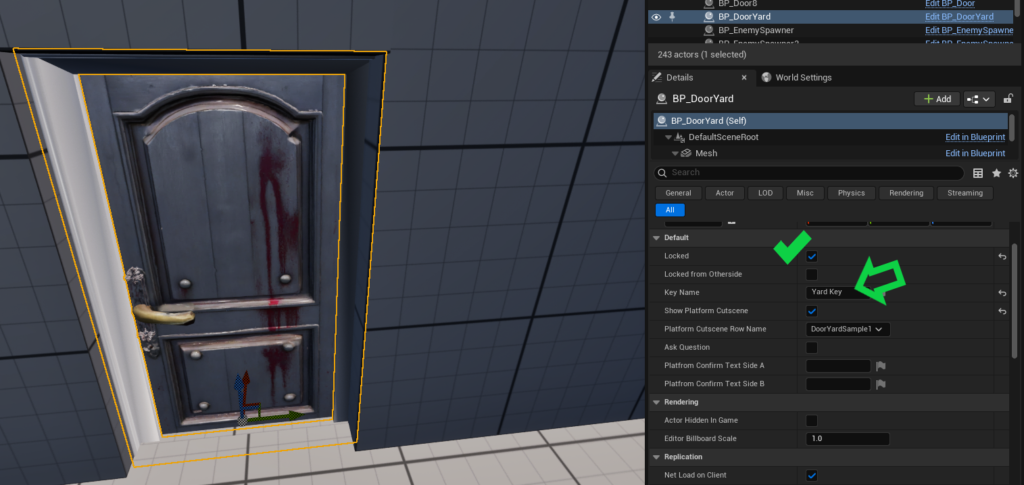
In this part, it’s important to know that if you want a door to be locked from one side only, meaning it’s barred from the other side and doesn’t require a key, you must enable both the Locked variable and check the LockedFromOtherSide option.
If you only enable Locked without LockedFromOtherSide, the door will remain locked from both sides, and the player will need to find a key to open it.
-How do you assign a key to a specific door? #
It’s very simple:
Place a BP_Item in the level for the key and fill out its details. Then, make sure the key’s name matches the KeyName variable in the corresponding door object. This way, the system links that key to that specific door.
Refer to the images below for visual reference. You can also use the test level included in the framework to better understand how platforms and their corresponding keys work together.
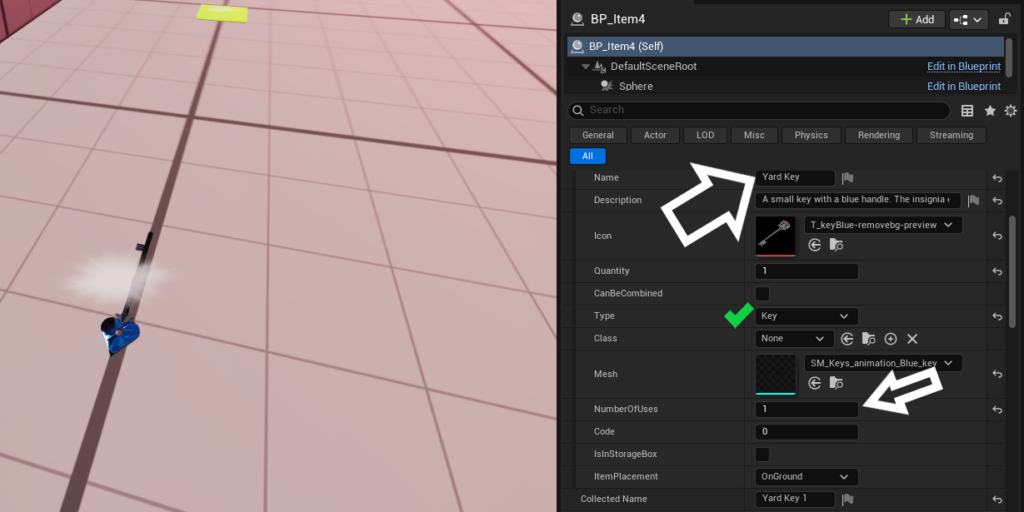
In the ItemInfo panel, there is a variable called NumberOfUses. This variable is particularly useful for keys.
For example, let’s say you have a key that can open more than one door; in that case, set NumberOfUses to 3. After the player uses the key to unlock all three assigned doors, a message will appear asking if they would like to discard the key, since it is no longer needed.
-How to Create a Cutscene for a Door? #
I made a dedicated video tutorial for this section. However, if you want to follow from here, to create a cutscene, simply open the level “DoorCinematic” located at:
ClassicSurvivalHorrorFramework/Demo/Maps
Then, play the sequencers found in:
ClassicSurvivalHorrorFramework/Blueprint/Cinematic/Sequence/Platform
Watch carefully how they are set up.
I’m confident you’ll easily understand how to create cutscenes for your own platforms!
After creating the cutscene, render it out and save it as an mp4 file. Then, copy this file into the Movies folder located at:
ClassicSurvivalHorrorFramework/Blueprint/Movies
(Note: Use your file explorer to copy the file.)
Go to the “Movies” folder and create these 3
for your cutscene video:
* File media source
* Media player
* Media texture
Next, open the enum E_PlatformCutsceneRowName found at:
ClassicSurvivalHorrorFramework/Blueprint/Database/Enum
Add a new entry for your new platform or door cutscene.
Then, open the data table DT_Platforms located at:
ClassicSurvivalHorrorFramework/Blueprint/Database/DataTable
Create a new row for your new door and configure the cutscene details accordingly.
Finally, when you place your new platform or door in the level, go to the Details panel and set the variable PlatformCutsceneRowName to the corresponding enum value you created.
That’s it! Your cutscene will now play as a matinee transition when the platform or door activates.
-How to change the Movies folder correctly? #
Before packaging your game, please make sure to move the Movies folder from its current location:
ClassicSurvivalHorrorFramework\Blueprint\Movies
to the root Content folder of your project.
Otherwise, the cutscenes will not play in the packaged build.
1. First, be sure to make a backup of your project so that if something goes wrong, you’ll still have your latest work saved.
2. Open your project directory in Windows File Explorer. In the “root” folder (where the `ClassicSurvivalHorrorFramework` folder is located), create a new folder named “Movies”.
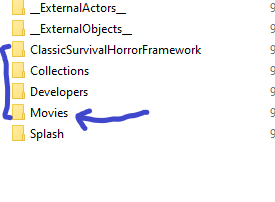
3. Navigate to:
`ClassicSurvivalHorrorFramework\Blueprint\Movies`
Select all `.mp4` video files and move them to the new “Movies” folder you just created in the root directory.
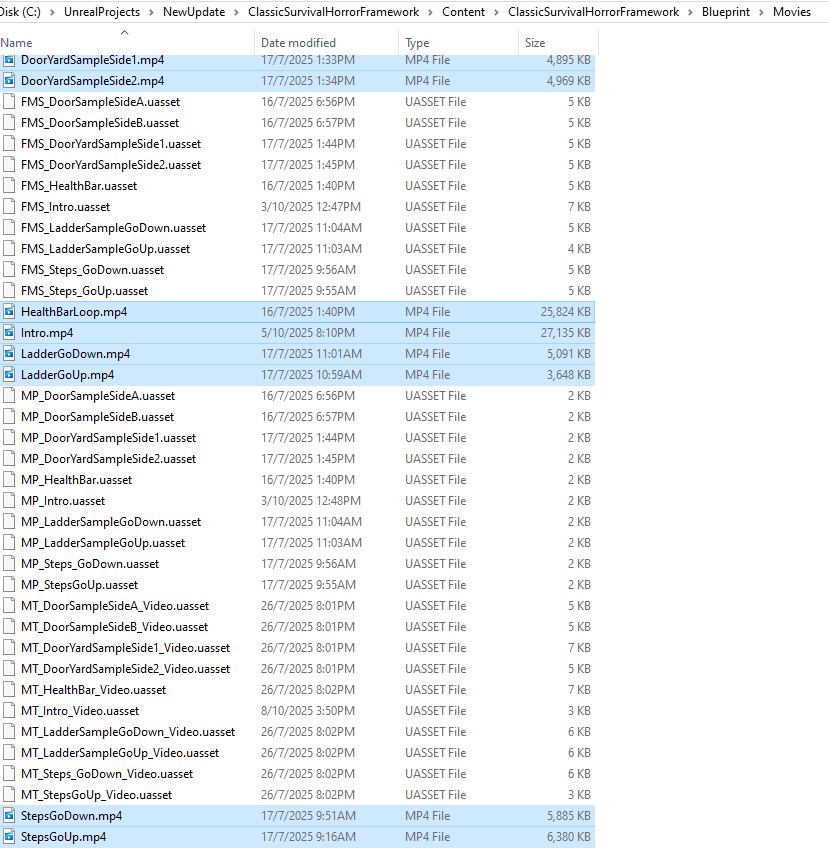
4. Inside Unreal Engine, move all files from:
`ClassicSurvivalHorrorFramework\Blueprint\Movies`
to the new “Movies” folder in the root directory and then delete the old Movies folder.

5. Open all “FMS_” assets and ensure their file paths now point to the new “Movies” folder location for the related `.mp4` videos.
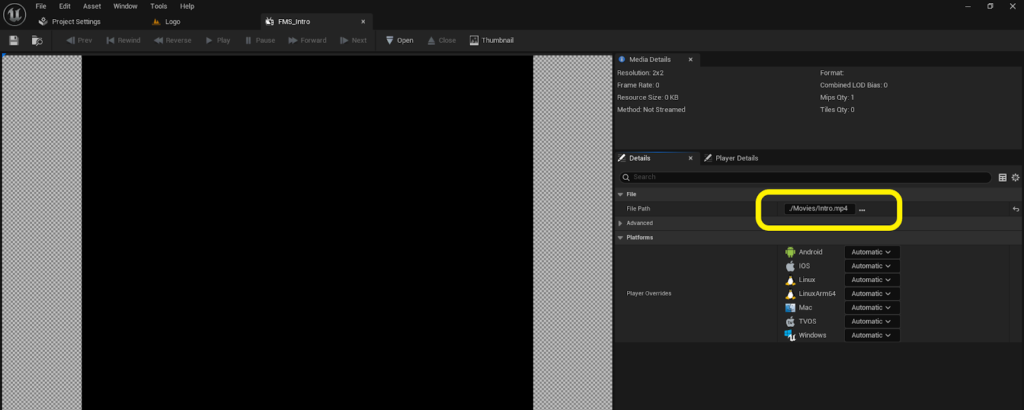
6- Finally, don’t forget to update the redirector references.
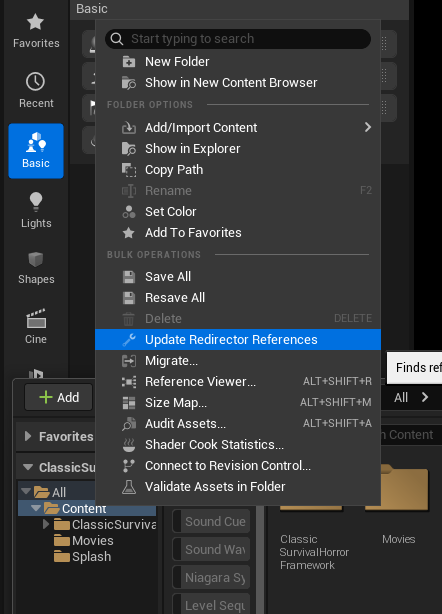
7. Everything should now work correctly in both the “Packaged Build” and the “Editor”.First, test it inside the editor to confirm everything is working. If you encounter any issues, double-check the steps above. You can also contact me if you have any questions.
4.3 Object Interaction System #
Important: After Update 1.7, we now have a DataTable (DT_ItemCombination) for item combinations. Therefore, you no longer need to set up item combinations manually in Blueprints, as explained in part 2 of tutorial 7:02 in the video. You can skip that part of the video and instead follow the documentation in Section 4.3. You can now easily create all item combinations directly using the DataTable.
In this kit, items are categorized into different types such as weapons, consumables, keys, files, and more. For each item, you can configure its properties in the details panel, making it easy to place items throughout your game world.
A key point to note is the CollectedName field, which requires a unique name for each item. For example, if you have 5 healing herbs in the game, all named “GreenHerb,” you must assign different names in the CollectedName field for each one. This could look like Herb1, Herb2, Herb3, and so on. This ensures that each item is treated as a distinct entity in the game, allowing for proper tracking and interaction.
With this system, you can easily customize how items interact with the player and control their placement and collection throughout the game.
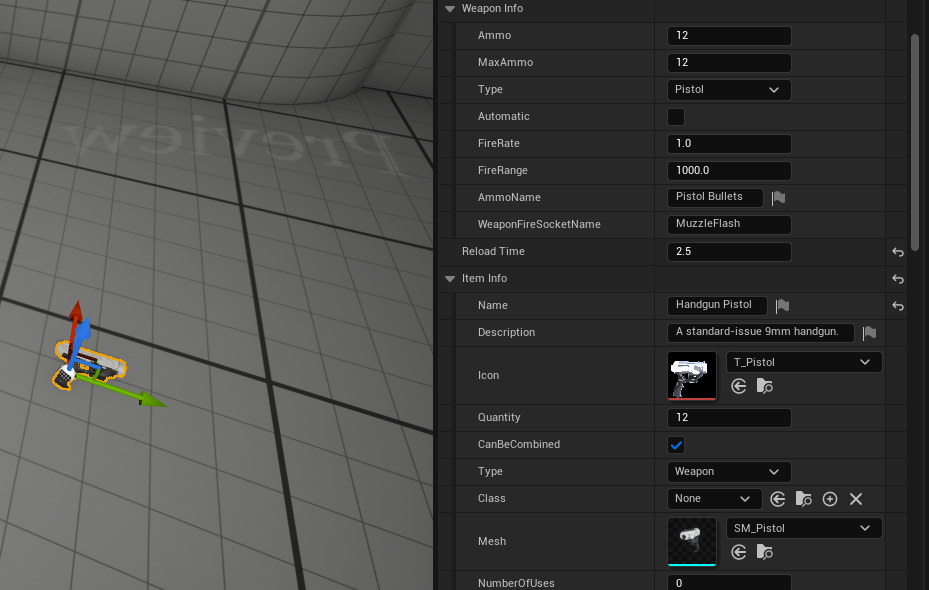
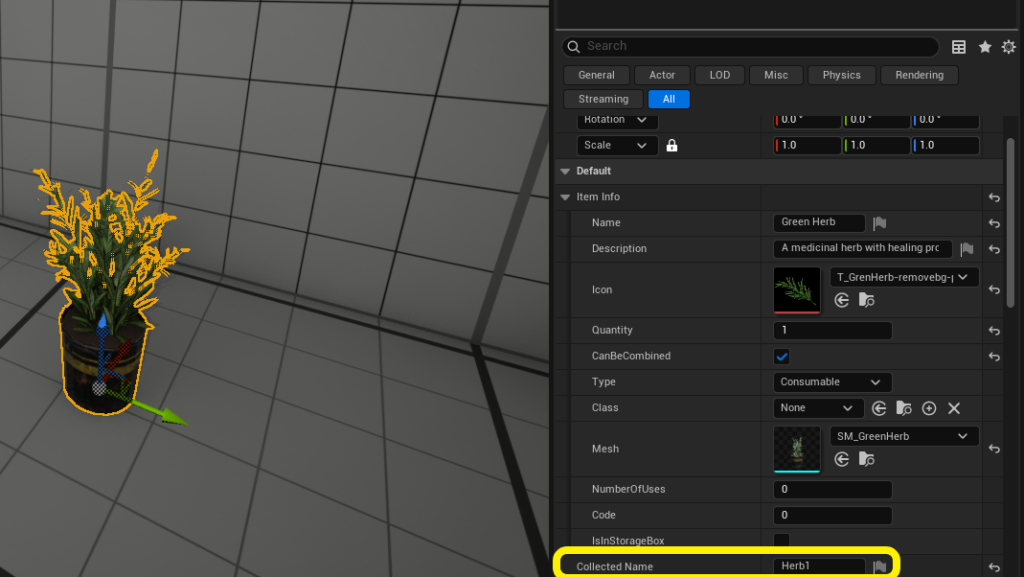
A variable in this section is Code. This value is automatically assigned a unique code at the start of the game, so you don’t need to modify it manually.
The variable IsInStorageBox also does not need to be changed. The ItemPlacement variable provides two options: Whether the item is placed directly on the ground or placed on a specific object, such as a table.
Depending on this setting, the appropriate grab animations will be played when the player picks up the item.
– How to Use the Item Combination System #
After update 1.7, combining items is now easier than ever in the Classic Survival Horror Framework.
We now have a DataTable called “DT_ItemCombination”, where you can define which items can be combined together and what item they produce as a result.
The DataTable already includes six sample entries for different combinations that you can use as examples.
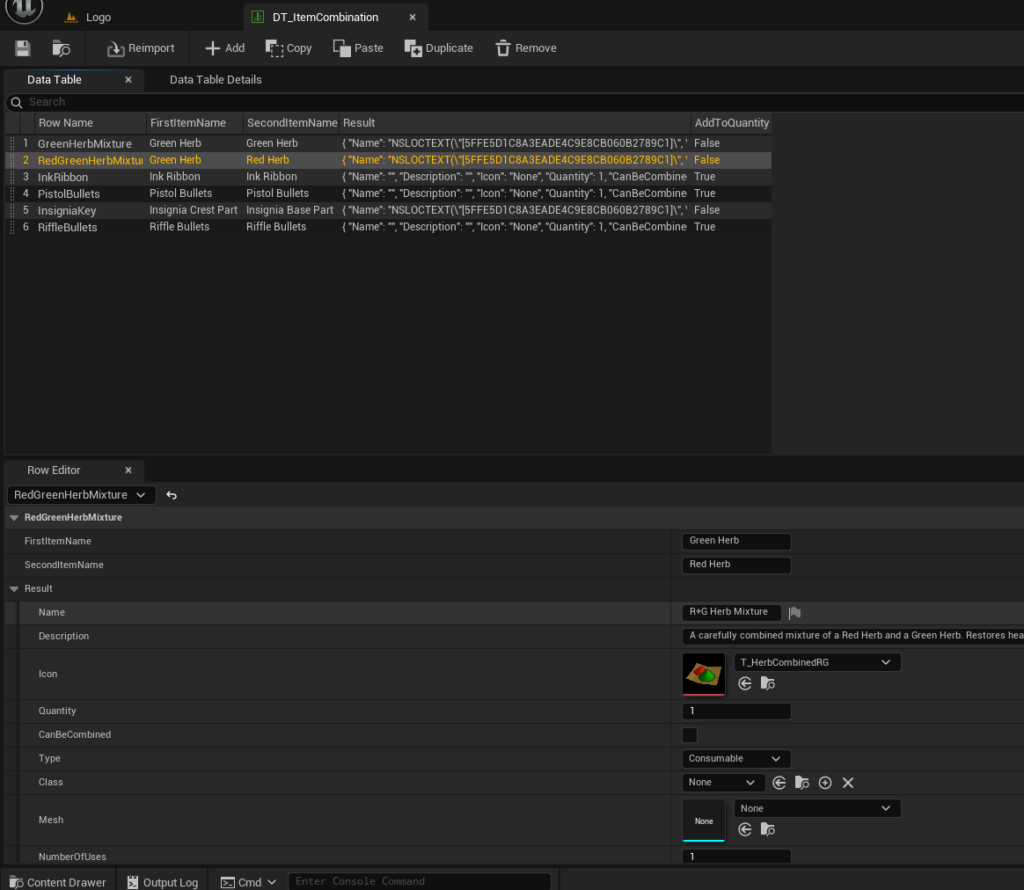
Important Note:
For stackable items, such as ammunition or Ink Ribbon, where, for example, you have three and find another one (and want the result to be four after combining), make sure to set the “AddToQuantity” option to True.
In this case, you don’t need to fill in the “Result” field.
However, for regular combinations, like combining a green herb with a red herb, leave the “AddToQuantity” option set to False and fill in the “Result” field, following the provided examples.
If you have any questions or run into any issues, feel free to reach out via email or chat; we’ll respond as quickly as possible.
4.4 Inventory System #
The full management of the inventory system takes place within the AC_Inventory component. In this component, we have two arrays: one for the items in the inventory and another for the readable files that the player collects throughout the game.
The key inventory functions are located within this component, allowing for efficient handling of item collection, While some functions related specifically to the user interface are placed inside the WP_Inventory widget, the majority of important functionality is integrated into the component itself.
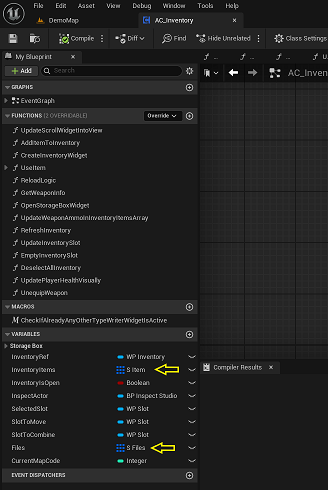
This structure ensures that the core inventory logic is separated from the UI, allowing for easier customization and management of items throughout the game.
4.5 Storage Box System #
The BP_StorageBox actor is used to manage the items stored within a storage box. This actor can appear in various rooms depending on your design, alongside the BP_SaveInteract Actor (which will be explained later).
The BoxItems array holds the data for the items currently stored in the box. You can configure the initial items placed in the storage box at the beginning of the game, if necessary. This allows for flexibility in item management and can be used to provide the player with specific items or resources at key points in the game.
With this system, players can store items safely in the storage box and retrieve them whenever needed, just like in the classic Resident Evil-style games.
4.6 Save System #
The BP_SaveInteract actor is the key element for saving the game. You can place this actor in any room where you want the game to be saved. It’s important to note that the AC_SaveGame component handles the code and logic for saving and loading the game.
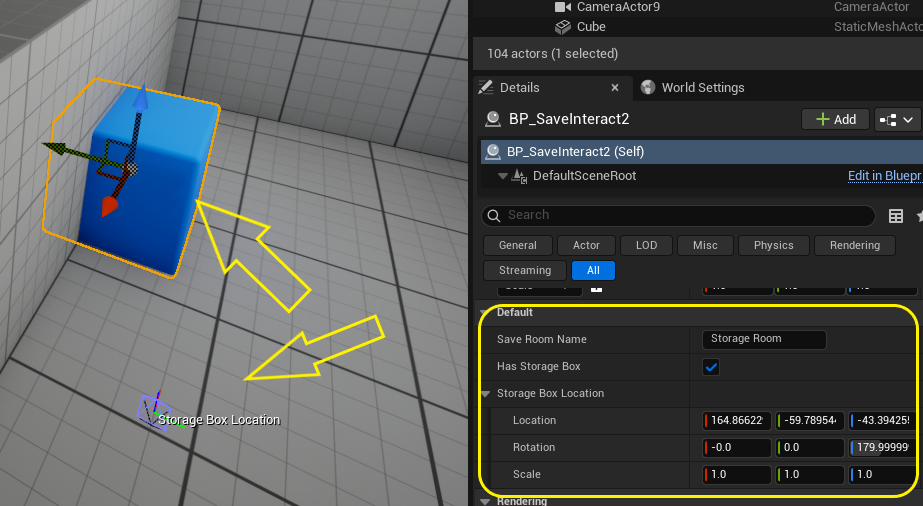
A crucial point is that whenever you want to include a storage box near a save point, you can define its presence using the two variables: HasStorageBox and StorageBoxLocation. In the test project map, two save files have been placed in two different rooms to help you understand how to set this up.
Additionally, the BP_CameraSwitcher actor needs to be updated. Its SaveInteract variable must be filled with the appropriate data. The function of this part is that every time the player interacts with BP_CameraSwitcher and the camera changes, the storage box location is updated as well.
Please refer to the attached images for more details on the setup.
-What gets saved in the game? #
Pretty much everything!
This includes:
– Which doors are locked, and which ones have been unlocked
– Which items have been picked up, and which ones are still on the ground
– Which cutscenes have already been played
– Which enemies have been killed
– Which enemies have awakened from sleep or are still inactive
– Whether the player has encountered the monster or not
– The player’s current health
– The items in the player’s inventory
– The items stored in the storage box
– How much time the player has spent in the game
…and much more!
If you feel something important is missing from the save system, just let us know so we can add it!
4.7 Map System #
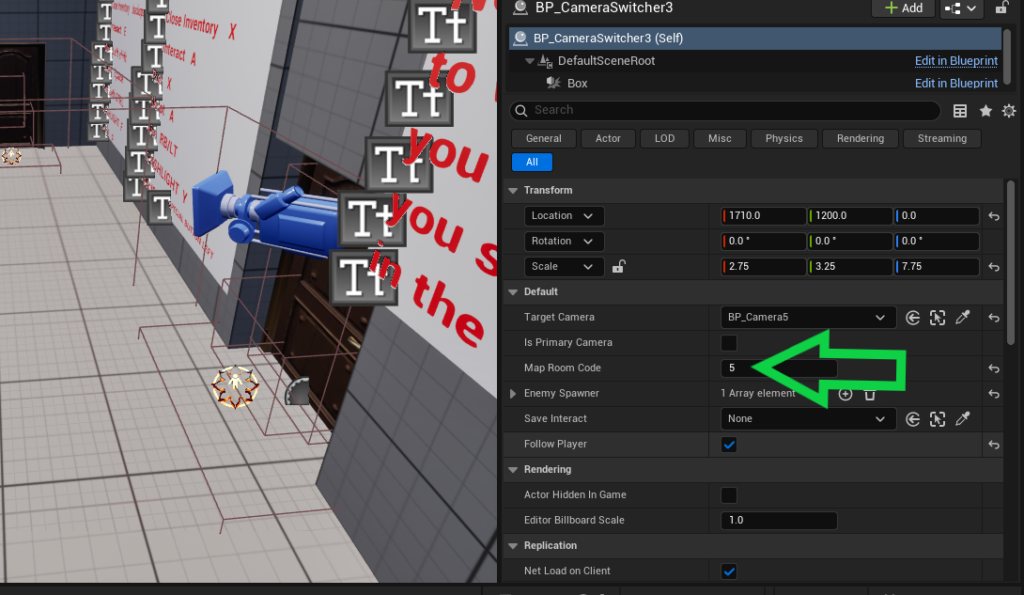
Remember the MapRoomCode variable we mentioned earlier in the BP_CameraSwitcher blueprint, which handles related map sections within rooms? This variable is used for connecting rooms to the map system.
For each room, you simply need to assign the same unique number (starting from 0) to all cameras within that room.
For example:
– If Room 1 has three cameras, set the MapRoomCode of all three to 0.
– For Room 2 and all its cameras, set it to 1.
– And so on for subsequent rooms.
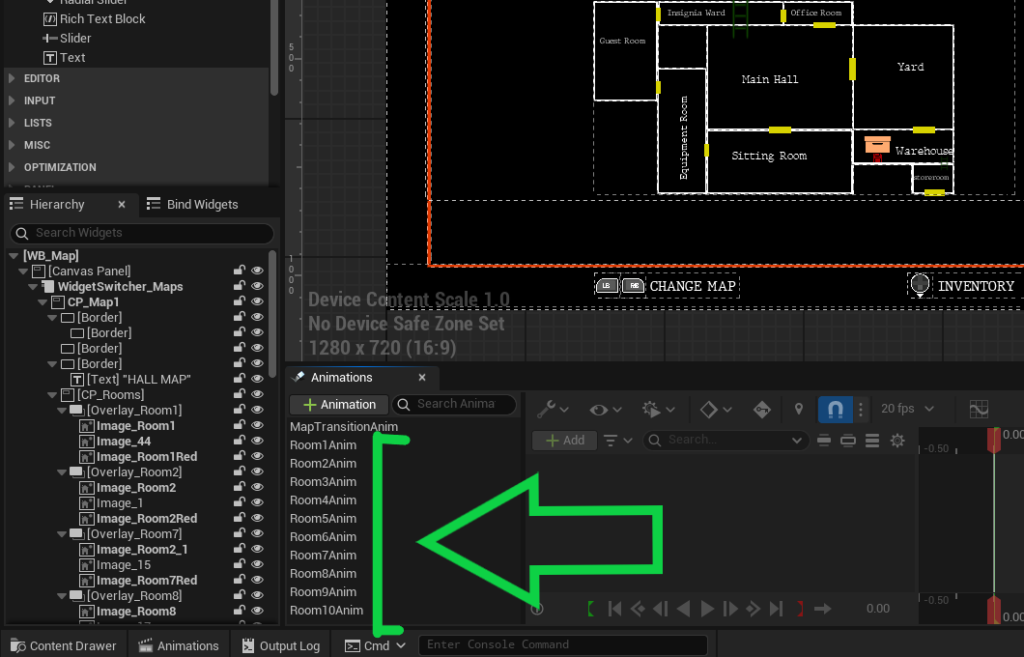
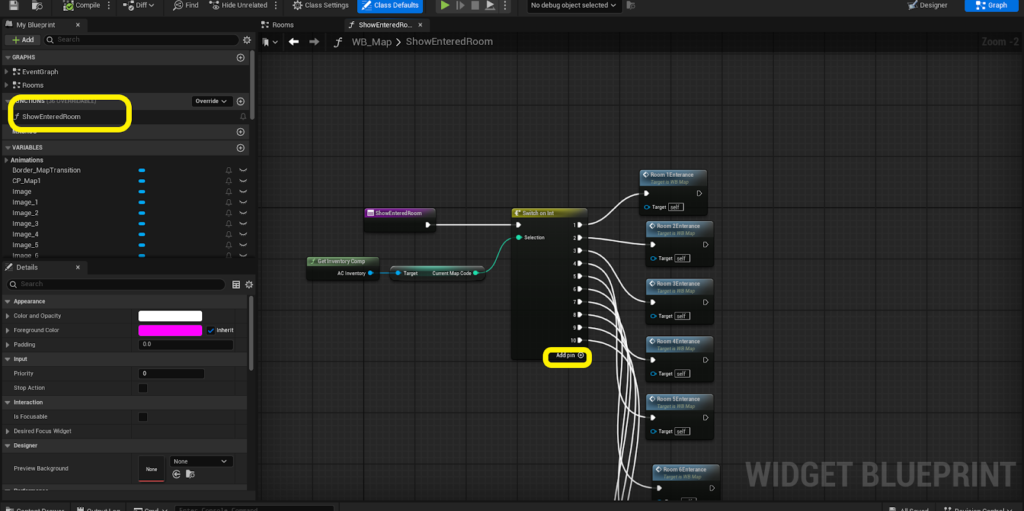
After setting up the MapRoomCodes, open the WB_Map widget. There, draw your map based on the provided example layout. Then, go to the Animations section and create an animation for each room just like the reference examples: Room1Anim, Room2Anim, Room3Anim, etc.
You can simply copy the provided samples, everything is already set up to guide you.
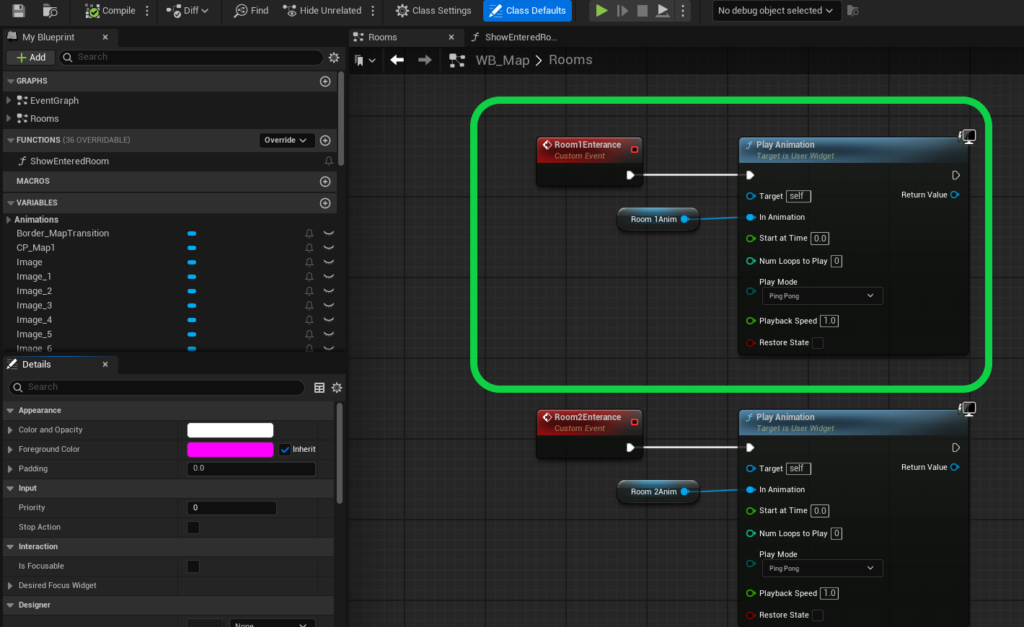
Next, go to the Graph section of the widget. Inside the Rooms graph, you’ll see example events like Room1Entrance, Room2Entrance, and Room3Entrance. For each animation you’ve created, create a matching event following the same naming convention.
Then, open the ShowEnteredRoom function. Here, connect each event to the correct room number pin. Essentially, you’re matching each MapRoomCode to its corresponding room entrance event.
If you have any questions or if something isn’t clear, don’t worry! You can check our YouTube channel for a video tutorial if one is available, or simply send us an email. We guarantee you’ll receive a complete and helpful response within 24 hours.
4.8 Enemy Spawn and Despawn System #
Now we’ve reached the most exciting part: Enemy system!
Let me first tell you where the inspiration for this system came from. You may have already guessed it, I’m obsessed with the classic Resident Evil 1, 2, and 3.
And to be honest, calling myself a fan doesn’t do it justice. I’ve played all of these games over 200 times, and I still play them to this day!
So yes, I know exactly how the enemy system in those games works, and my goal was to faithfully recreate that same behavior in this framework.
So, how does it work?
-The Core Enemy System #
By default, there are no active enemies in any room of the game world.
Enemies are only spawned when you enter a specific room, and only if that room has been configured to contain enemies.
So when you enter the room (during the black screen transition between platforms or the door-opening matinee cutscene), the enemy will be spawned at that exact moment.
If you leave the room and the enemy is still alive, it will be de-spawned.
-How to Assign Enemies to Each Room? #
It’s super simple!
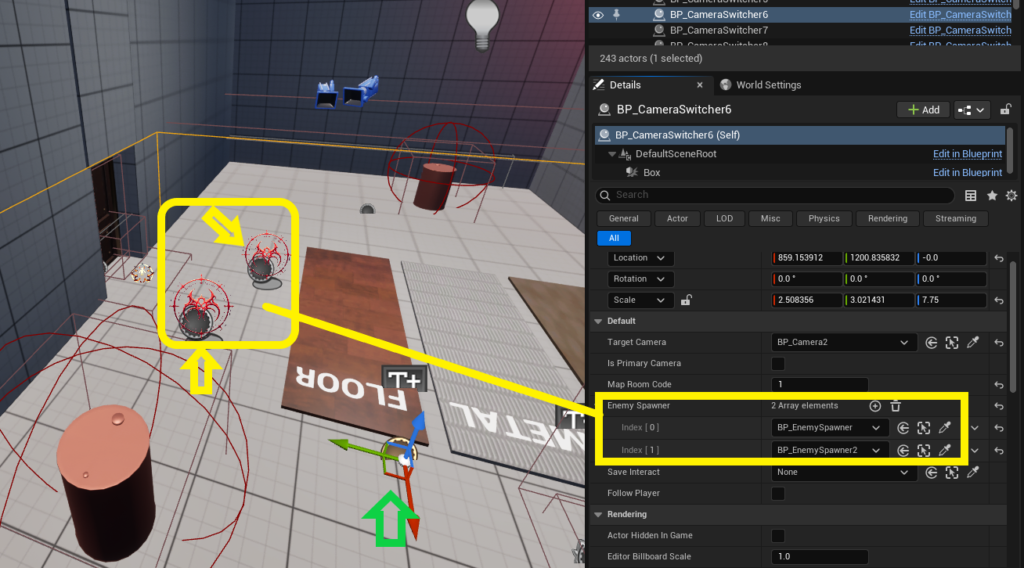
As I mentioned earlier, each BP_CameraSwitcher object in the environment has an array variable called EnemySpawner.
Here’s what you need to do:
– Place a BP_EnemySpawner in the appropriate room.
– Set up the settings for that spawner.
– Add that BP_EnemySpawner to the EnemySpawner array in the relevant BP_CameraSwitcher.
-How Does BP_EnemySpawner Work? #
Let’s break it down:
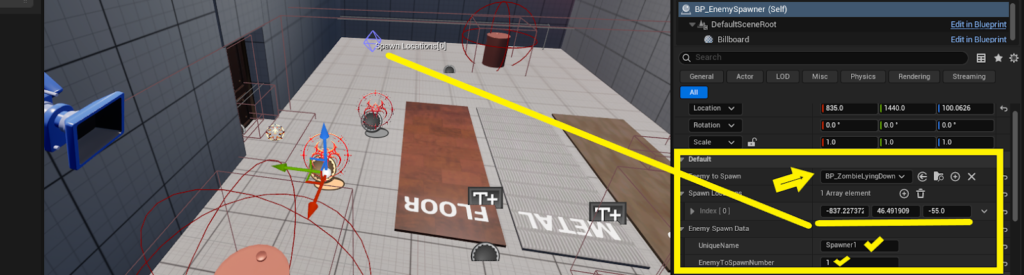
EnemyToSpawn:
Here, you choose what kind of enemy you want to spawn. You can pick from one of the following three classes:
* BP_ZombieNormal
* BP_ZombieSitting
* BP_ZombieLyingDown
You cannot use BP_Monster here. That enemy has a unique spawn system which we’ll cover elsewhere.
-SpawnLocations: #
This is an array where you specify where in the room each enemy should spawn.
For example, if you want a sitting zombie against the wall, make sure to place and align the spawn point correctly.
-EnemyToSpawnNumber: #
This tells the spawner how many enemies to spawn of the selected type.
If you want to spawn 3 zombies, enter 3 and also make sure you provide 3 spawn locations in the SpawnLocations array.
Important:
If you want to spawn multiple enemy types (e.g., one BP_ZombieNormal and one BP_ZombieSitting), you cannot do that with a single spawner.
You’ll need to place two separate BP_EnemySpawner objects, one for each type. Then, add both spawners to the EnemySpawner array of the corresponding BP_CameraSwitcher.
-Example & Best Practices: #
If you check the demo map included in the project, you’ll find two enemies, one lying down and one sitting against the wall, both using this exact system. It’s a great example to follow!
Also, make sure the UniqueName variable on each BP_EnemySpawner is different.
For example, one can be named Spawner1, the other Spawner2, and so on.
Repeating UniqueName values across spawners can cause issues in the saving and loading system for enemies.
4.9 Crimson Head AI #
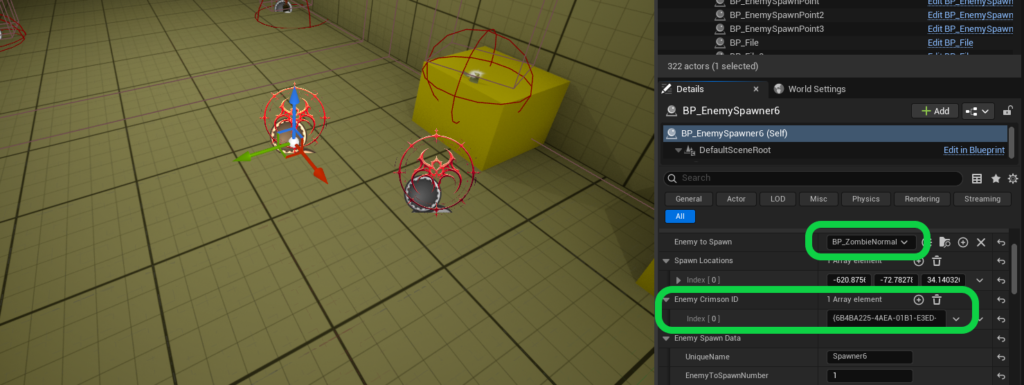
Currently, the Crimson Head feature is enabled on the BP_ZombieNormal class, but by default, this feature is turned off. In order for BP_EnemySpawner to add the Crimson Head state to an enemy it spawns, you need to add a new ID to the EnemyCrimsonID array on this class in the editor, and then press the Generate button as shown in the image.
For example, in this image, this enemy spawner is spawning an enemy that has a spawn location at index 0 and a Crimson ID at index 0. The indices of the Crimson ID and the spawn location correspond to each other.
Crimson Head enemies are those that, after being killed, must be burned; otherwise, after a certain period of time (default 30 seconds), they will come back to life, but more aggressive—meaning they become both faster and stronger, to the point where they can decapitate the player with a single hit.
Note that if the player leaves the room, the enemy will immediately respawn upon re-entering the room, ignoring the 30-second timeline.
If the player kills an enemy that has turned into a Crimson Head, that enemy is destroyed permanently.
Crimson Head states are saved and loaded exactly in the save system, meaning if an enemy has become a Crimson Head and the player hasn’t killed it yet but saves the game, that enemy will remain a Crimson Head when the game is loaded.
To burn a Crimson Head enemy, the player must have two items in their inventory: a Fuel Can and a Lighter, and the Fuel Can must contain a sufficient amount.
4.10 Crow AI #
Crows were some of the truly scary enemies in the classic Resident Evil games. Now, in the framework, you can also add crows to your environment. All you need to do is add BP_Crow to your level and adjust its Spline in the editor to define how you want the crow’s flight path to behave when the player approaches it.
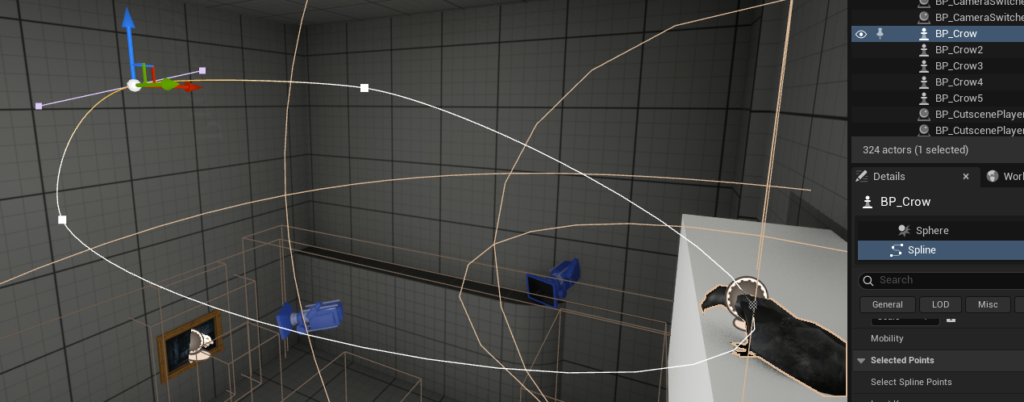
Currently, the crow behaves like this: the first time the player gets close, it flies along the path you set and then returns to its starting point. The next time the player approaches, the crow will attack the player and will not return to its starting point until it either damages the player or is prevented from reaching them.
If the player manages to escape the room by using a door or platform while being chased by the crow, the crow will return to its initial point.
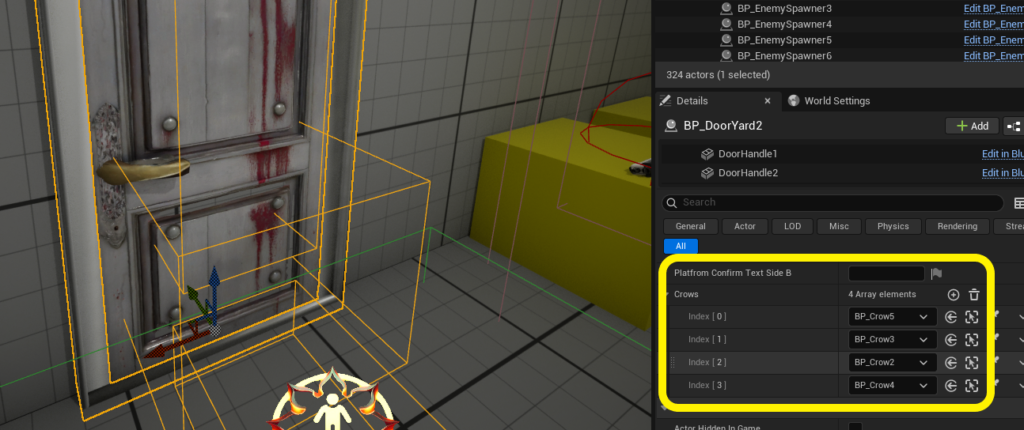
An additional important step is that you must reference the crow on all doors in the room where it is placed. This is very important because it ensures that the crow returns to its original location when the player leaves the room.
5. Game Controls #
How and Where to Customize Game Controls?
Currently, all game controls are inspired by the original Resident Evil 2 and 3. However, you have full freedom to customize them to your preference.
-Gameplay Controls #
Gameplay controls are straightforward to modify. Navigate to:
ClassicSurvivalHorrorFramework/Blueprint/Input
and edit the IMC_Default input mapping as needed.
-UI Controls (Inventory, Storage Box, and Others) #
To change all UI-related controls, go to:
ClassicSurvivalHorrorFramework/Blueprint/Database/DataTable
and modify the DT_FrameworkUIKeys DataTable for both Gamepad and Keyboard inputs.
Important: When using the framework, please make sure Steam is closed. It has been observed that keeping Steam open during testing can sometimes cause issues with Gamepad input.
6. Player Character and Animation Blueprint #
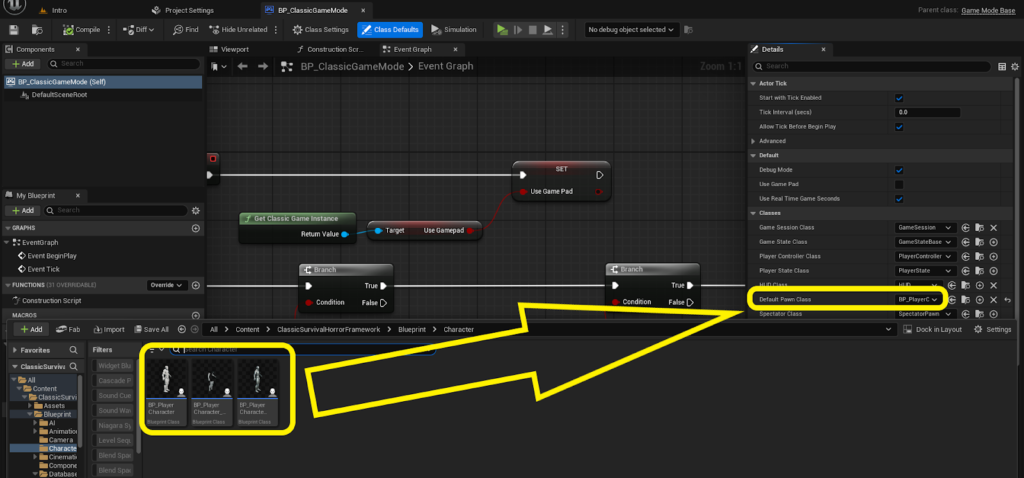
-UE4 Character class: #
The base default player class of the framework uses the UE4 skeleton. Therefore, for those who want to use the UE4 skeleton, the main player class is BP_PlayerCharacter.
-UE5 Character class: #
Well, if your character model uses the UE5 skeleton, we’ve got you covered. You can use BP_PlayerCharacter_UE5 as your player class, and in BP_ClassicGameMode, please replace the Default Pawn Class with this one.
-Metahuman Character class: #
You want to use MetaHuman characters instead of UE4 or UE5 skeletons? No need to worry, You just need to use BP_PlayerCharacter_Metahuman and follow the same steps I mentioned for the UE5 skeleton for your class. If you have any questions about this, feel free to ask me in chat or via email, and I’ll provide more details.
-Animation Blueprint: #
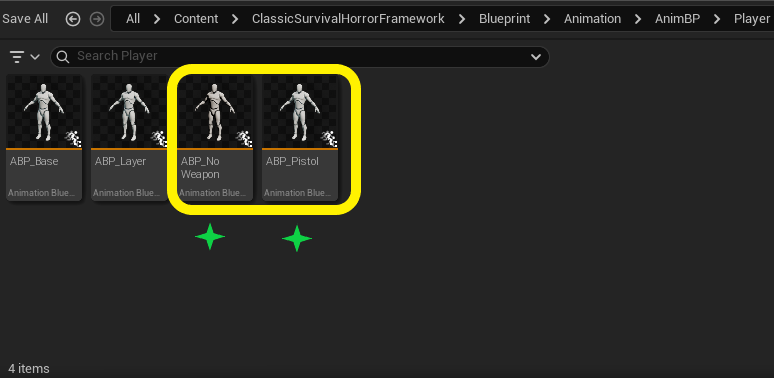
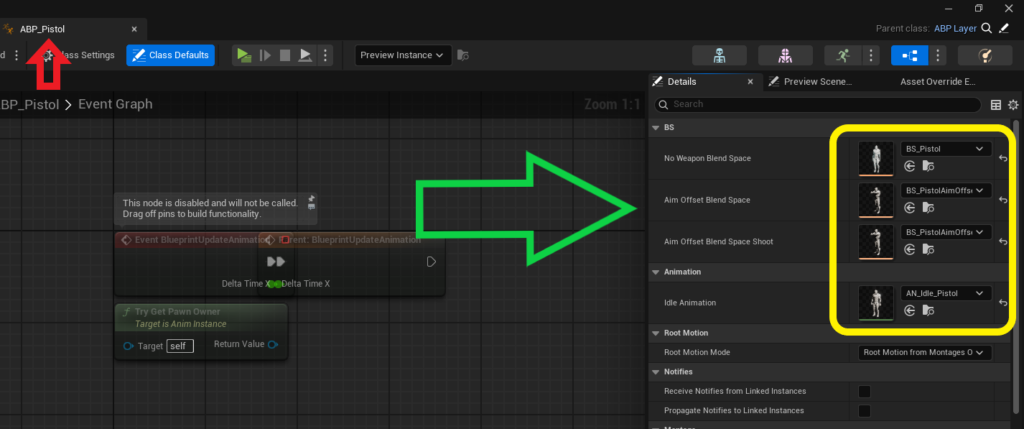
As previously mentioned, animation layers have been utilized in the animation blueprint to simplify the process of adding new weapons. With this structure, you can easily create a new layer for the weapon, set up its blend spaces and corresponding animations, and integrate them into the system.
This layered approach ensures that adding new weapons or animation sets is straightforward and organized, allowing for greater flexibility and scalability in the animation system.
7. Cutscene Player #
Triggering Cutscenes with BP_CutscenePlayer
BP_CutscenePlayer is an actor you can place anywhere in your level to trigger a cutscene at that location. After creating your cutscene using the Sequencer, follow these steps:
Step-by-Step Setup
7.1 Add the cutscene to the enum: #
Go to “ClassicSurvivalHorrorFramework/Blueprint/Database/Enum” and open E_Cutscene.
Add a new entry for your cutscene. Every cutscene in the game must have a corresponding entry in this enum.
7.2 Place the actor in the world: #
Drop the BP_CutscenePlayer actor near the entrance of the room or platform where the cutscene should trigger. This ensures that the cutscene plays immediately when the player enters the area.
7.3 Configure the actor’s settings: #
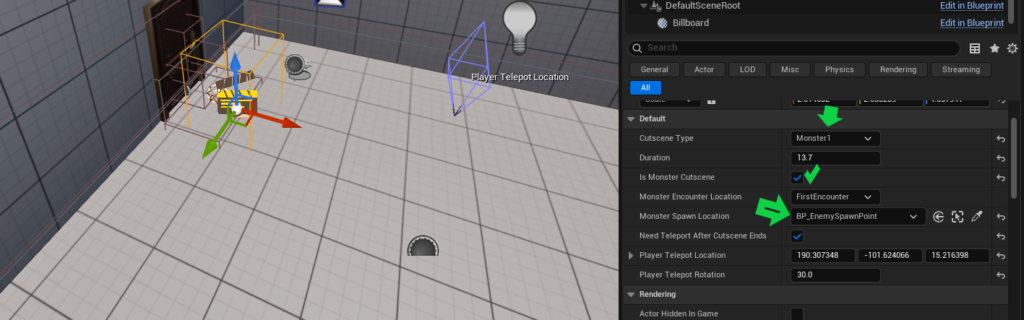
CutsceneType: Select the entry you just added to the E_Cutscene enum.
*Cutscene Duration: Set the duration of the cutscene (e.g., 20 seconds, 45 seconds, etc.).
*IsMonsterCutscene: Check this box if the cutscene involves a monster appearance.
*E_MonsterEncounterLocation: Used to define different monster encounter scenarios. You can expand this enum as needed.
*MonsterSpawnLocation: This defines where the monster will spawn after the cutscene ends. You need to place a BP_SpawnEnemyPoint actor in the level and assign it here.
*PlayerTeleportLocation & PlayerTeleportRotation: If the player’s position or rotation should change after the cutscene ends, set these values accordingly.
7.4 Blueprint Setup: #
Open the blueprint BP_CutscenePlayer and go to the logic for the CutsceneType. Add the logic for your new cutscene just like the provided samples.
The project includes two example cutscenes as references:
-One normal cutscene
-One monster encounter cutscene
You can use these as templates to build your own.
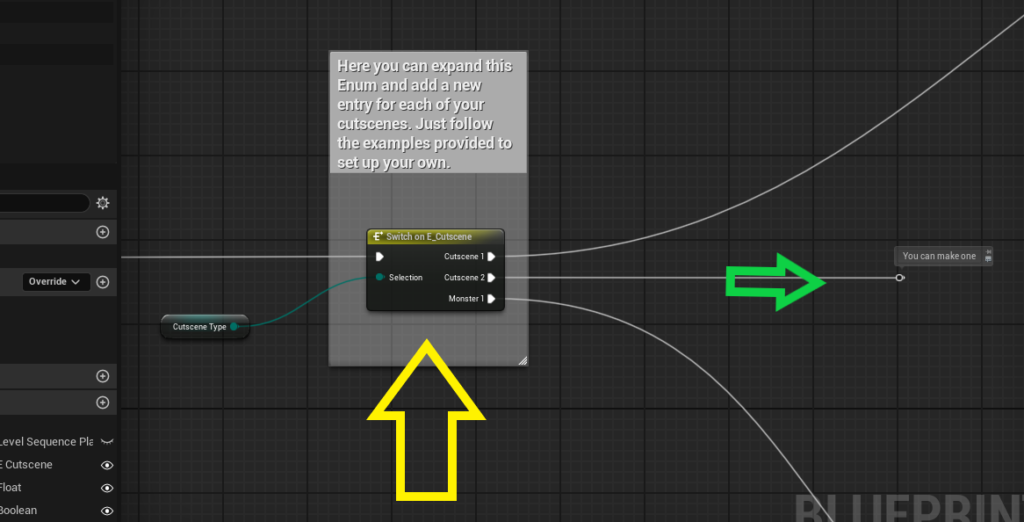
Important:
If the cutscene is fort the monster, make sure to check “IsMonsterCutscene” variable, assign the correct spawn point (MonsterSpawnLocation) in the map for the monster’s appearance
-Monster Encounter with Player Choice (Like Nemesis): #
If the monster’s appearance includes a player choice, similar to Nemesis, where the player can choose to either fight or run, you’ll need to expand the system inside BP_CutscenePlayer.
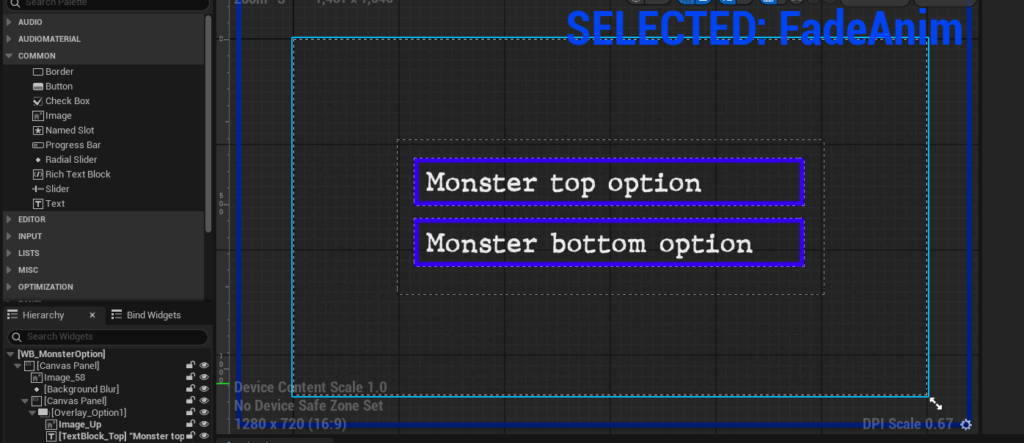
In the section where we switch on the CutsceneType variable, you can customize the logic based on the style of your game. For the monster encounter, you can use widget WB_MonsterOption and Add it to the viewport during that cutscene
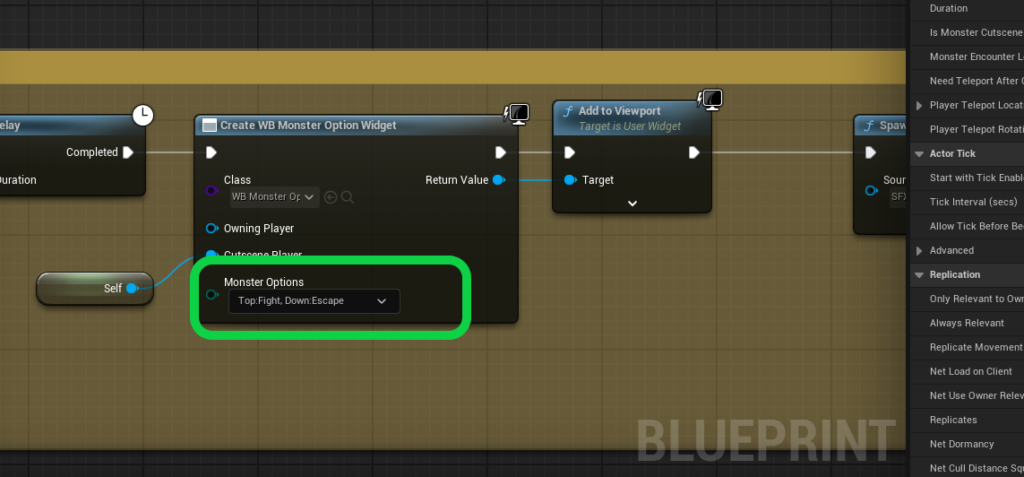
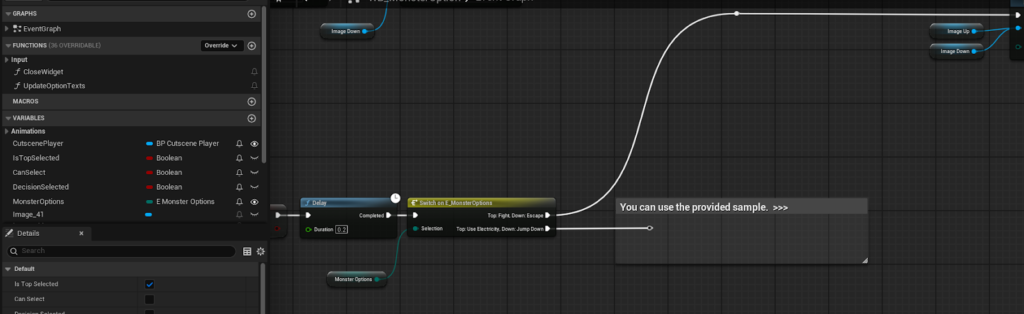
An example of this setup is already available inside BP_CutscenePlayer and is highlighted in yellow for easy reference. After that, open the widget and look for the Select event. You can use this event to define different behaviors for your game, depending on the player’s choice. There is also an enum called E_MonsterOptions located at:
ClassicSurvivalHorrorFramework/Blueprint/Database/Enum
You can expand this enum with new options as needed, just like the example entries provided.
8. Spawn Monster #
Spawning the Monster with BP_MonsterSpawner
By placing the BP_MonsterSpawner actor anywhere in your level, you can control how and where the monster appears.
This actor comes with a set of variables that let you define the probability of the monster spawning when the player enters the area. In other words, it allows you to create randomized monster encounters. Think of it like how Nemesis would sometimes appear in specific rooms in Resident Evil 3 Classic. It felt dynamic and unpredictablei sometimes he showed up, and sometimes he didn’t. That’s exactly the kind of system this actor replicates.
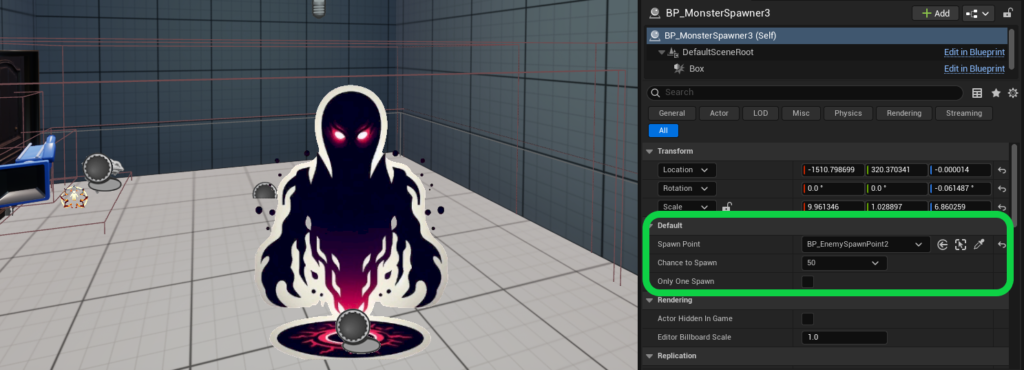
For example:
And maybe a 75% chance in another room.
You can set a 35% chance for the monster to appear in one room.
Each time the player enters those areas, the system will randomly decide whether to spawn the monster, creating a more dynamic and replayable experience.
9. Readable Note #
If you want to add readable notes or documents to your game, you need to use BP_File. To do this, simply fill the FileTexts array with the content of your file (each element in the array represents a page).
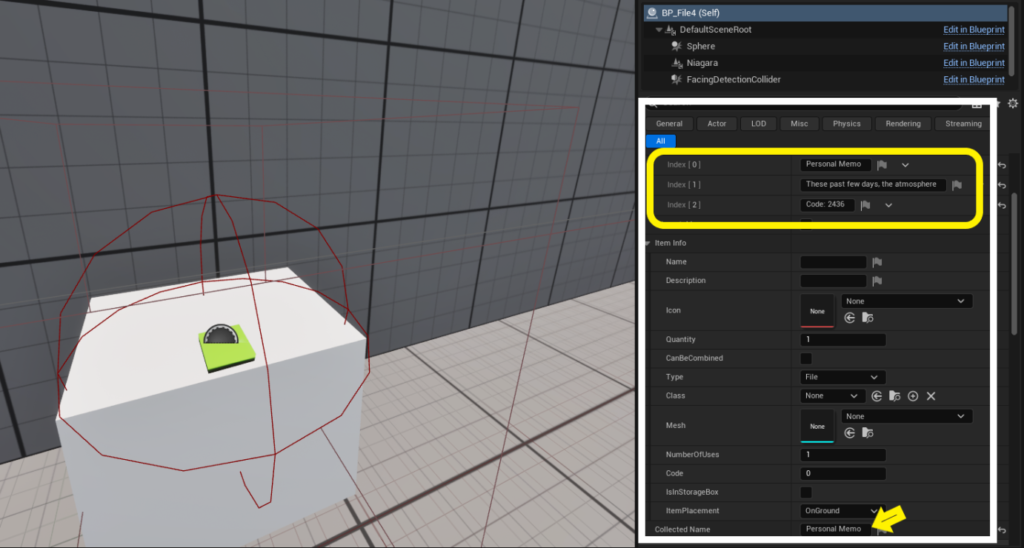
Important:
Don’t forget to set a unique value for the variable CollectedName for each file. This name is used to track whether a file has been collected or not.
A good practice is to use the first element of your FileTexts array as the CollectedName as well , just just make sure it’s unique across all files.
10. Interaction Text #
What is BP_TextInteract?
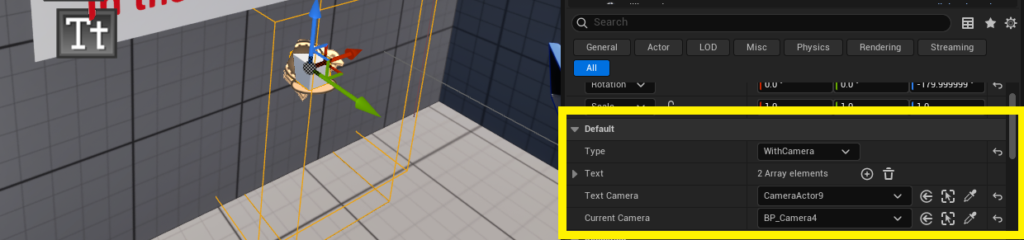
BP_TextInteract is used when you want the player to interact with an object in the world and display a piece of text , like examining a sign, poster, or note.
This actor helps you handle that interaction and comes with three different modes:
*Zoom Mode – The camera zooms in on the object when the player interacts with it (perfect for signs or photos).
Important: In this mode, you need to assign a camera in the settings. Make sure to set two cameras: the current gameplay camera (for that area) and the specific camera that should be used when interacting with this object.
*Animation Mode – An animation plays before the interaction, like the player bending down to examine something.
*Simple Mode – A basic interaction with no camera zoom or animation.
All three examples of this actor are included in the demo level as a reference.
11. Safe Box #
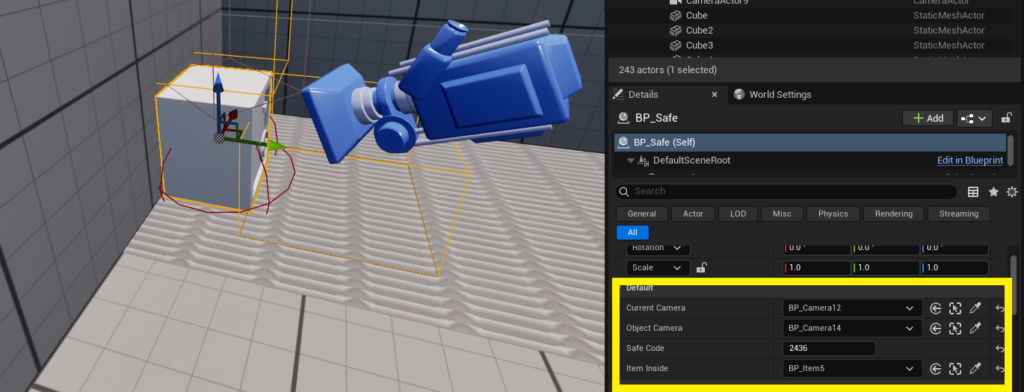
This actor is very straightforward and works similarly to BP_TextInteract.
You need to set up the following:
-Two cameras, one for the environment and one focused on the safe itself.
-The safe’s combination code (password).
-The item was placed inside the safe.
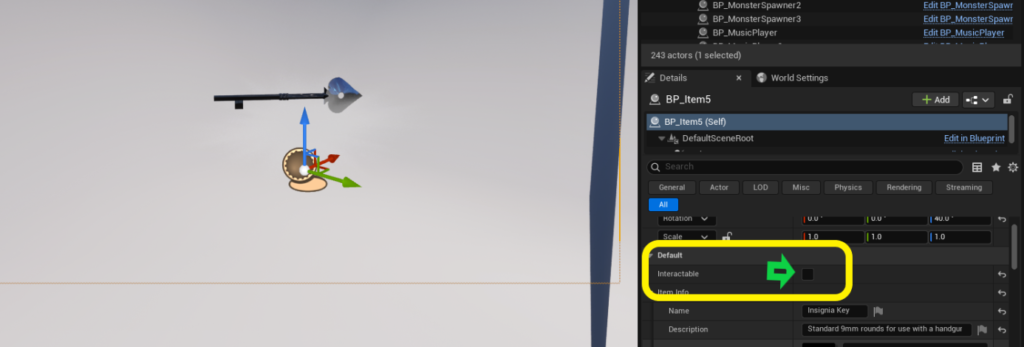
Important:
Make sure the boolean variable Interactable on the item inside the safe is unchecked. Otherwise, the item can not be collected after the box is opened
12. Bug Reporting #
If you encounter any bugs or unexpected behavior while using the framework, please report them so they can be addressed in upcoming updates.
⚠️ Bug fixing is a high priority, and all reported issues will be carefully reviewed and tracked.
You can submit issues from the Bug Reports Topic in the Support forums.


0 Comments